Team & roles
After this page, your teammates are in your workspace with the right role — admin or member — and you'll know exactly what each role can see and change.
Your workspace and your team
When you signed up, Qalyb created a workspace for you. You'll also see it called an organization — the sign-up wizard says workspace, while the settings pages and the API say organization. They're the same thing. Everything you build — agents, data sources, channels, campaigns, calls, billing — lives in that one workspace, and every teammate you invite shares it.
Each person belongs to exactly one workspace, and whoever created it is its first admin automatically.
This user already belongs to another organization. Plan a teammate's first workspace carefully.Invite a teammate
In the dashboard sidebar, click the workspace switcher (the building icon) and choose Manage organization. The page that opens shows your Organization Details on top and the Team Members list below. Only admins see this menu item — a member who opens the page directly is sent back to the dashboard.
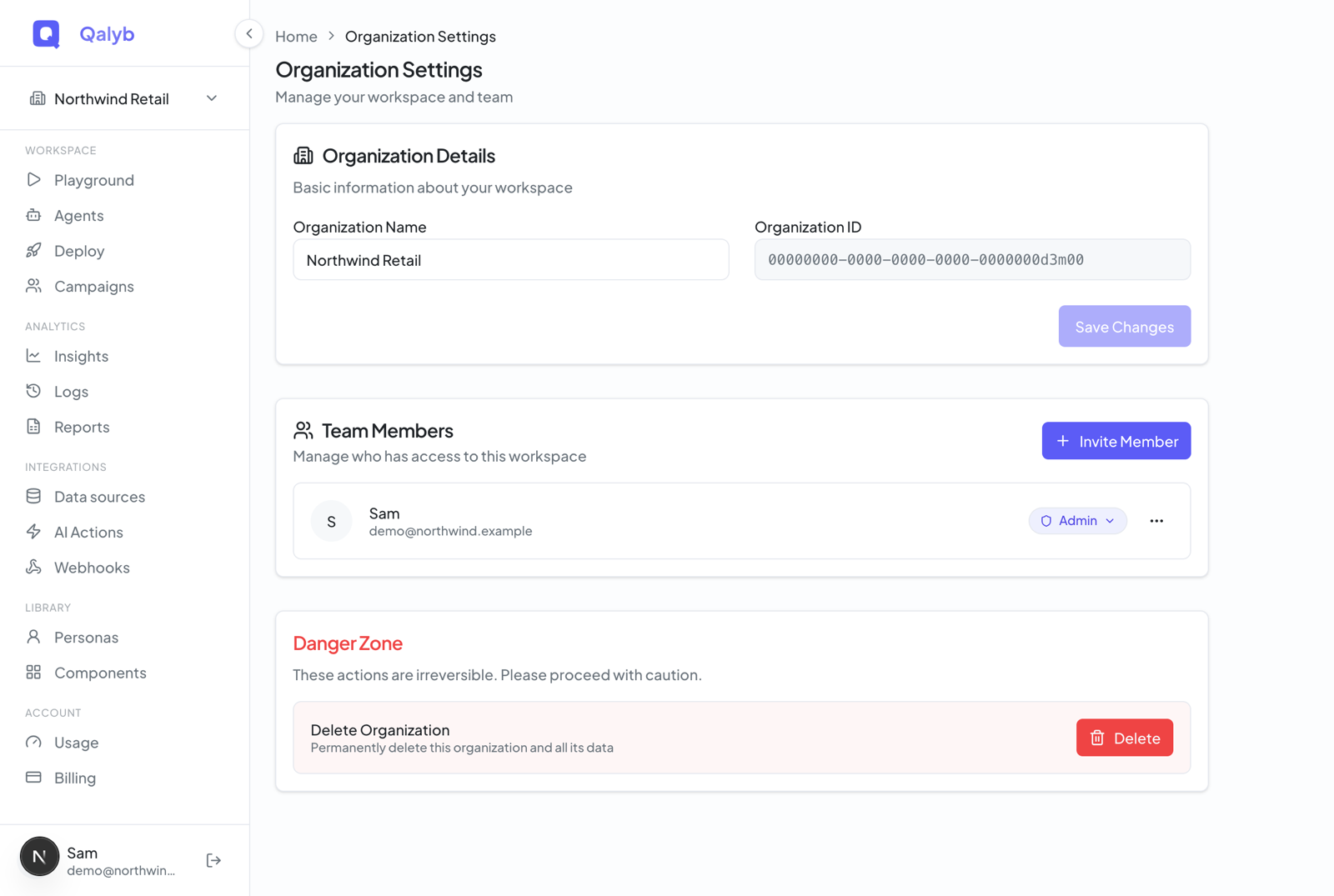
In the Team Members section, click Invite Member. Type your teammate's email address, pick a role — Admin or Member — and click Send Invite.
They get access the next time they sign in to Qalyb with that email. If they don't have an account yet, the spot is held for them and claimed when they sign up with the same address.
The two roles
Qalyb keeps roles deliberately simple: every workspace has exactly two, and admin outranks member.
| Role | What it can do |
|---|---|
| Admin | Full control. Manage team members, connect channels under Deploy, manage webhooks, change billing, and edit workspace settings — plus everything a member can do. |
| Member | Build and run the product: create and edit agents, run campaigns, review calls, and manage data sources and components. Billing, voices, and integrations are read-only. |
What each role can do, in detail
Here's the full picture. Admin-only areas such as Deploy (the channels hub) and Webhooks are hidden from members' sidebars entirely — but the hidden menu item is just tidiness. The server checks your role on every single request, so a member can't reach an admin-only action by typing the address.
| Capability | Admin | Member |
|---|---|---|
| Agents, campaigns, calls, components | Read & write | Read & write |
| Data sources (knowledge bases) | Read & write | Read & write |
| Deploy / channels, webhooks | Read & write | No access |
| Team members | Read & write | No access |
| Billing | Read & write | Read only |
| Voices, integrations | Read & write | Read only |
| Workspace settings | Read & write | No access |
Change a role or remove someone
Each row in the Team Members list shows the person's role as a pill. As an admin you can:
- Change a role — switch someone between Admin and Member with the inline role dropdown.
- Remove someone — open their
⋯menu and choose Remove. You'll be asked to confirm.
Cannot demote/remove the last admin — promote someone else to admin first.Seats by plan
How many teammates you can add depends on your plan:
| Plan | Members included |
|---|---|
| Free | 1 |
| Starter | 2 |
| Pro | 10 |
| Ultra | 50 |
Need more seats? Upgrade from Billing & credits.
Your workspace name and ID
The top of the team page shows your Organization Name and a read-only Organization ID. The ID is how the API refers to your workspace — copy it when a support request or an API call asks for it.
For developers
Team management is also available over the API. Each action is gated by a fine-grained permission (for example members:read / members:write, channels:write, billing:write), resolved from your session plus the X-Organization-Id header on every request. These endpoints need an admin session.
List members
curl https://api.qalyb.ai/auth/organizations/ORG_ID/members \
  -H "Authorization: Bearer <session-token>" \
  -H "X-Organization-Id: ORG_ID"
Invite a member
curl -X POST https://api.qalyb.ai/auth/organizations/ORG_ID/members/invite \
  -H "Authorization: Bearer <session-token>" \
  -H "X-Organization-Id: ORG_ID" \
  -H "Content-Type: application/json" \
  -d '{
    "email": "ops@acme.com",
    "role": "member"
  }'
Change a member's role
curl -X PATCH https://api.qalyb.ai/auth/organizations/ORG_ID/members/MEMBER_ID \
  -H "Authorization: Bearer <session-token>" \
  -H "X-Organization-Id: ORG_ID" \
  -H "Content-Type: application/json" \
  -d '{ "role": "admin" }'
Remove a member
curl -X DELETE https://api.qalyb.ai/auth/organizations/ORG_ID/members/MEMBER_ID \
  -H "Authorization: Bearer <session-token>" \
-H "X-Organization-Id: ORG_ID"role accepts only admin or member. Inviting an email that already belongs to any organization is rejected, and you cannot demote or remove the last admin.