Everywhere your agent can work
Building an agent is half the job — the other half is putting it in front of customers. This page tours every place your agent can answer, what each one needs, and how to connect them all from a single screen.
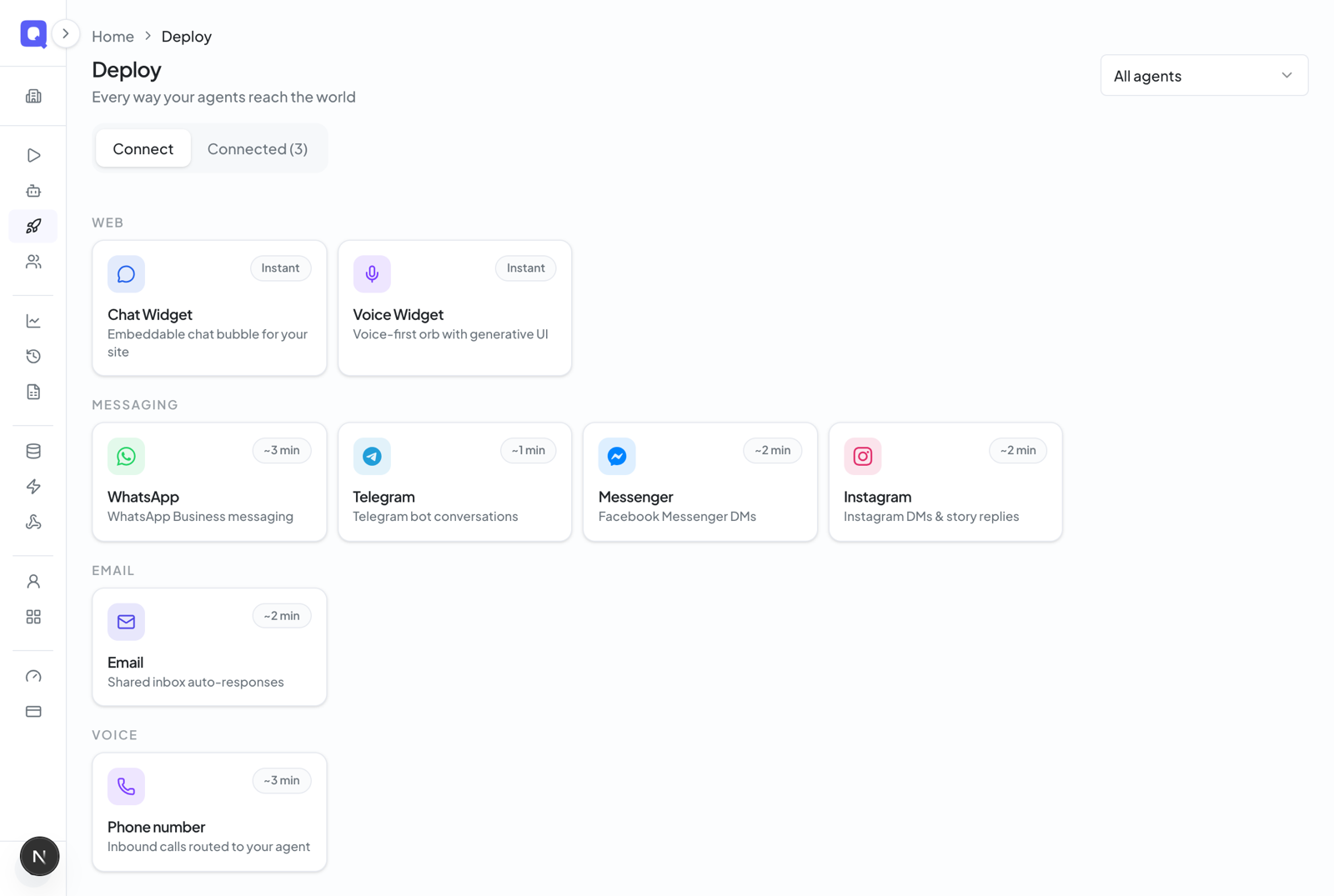
In Qalyb, every place your agent can answer — a chat bubble on your website, a phone number, a WhatsApp Business number, an Instagram inbox — is a channel. You connect and manage all of them from one screen: Deploy, in the left menu of the dashboard.
The Deploy page
Deploy brings four kinds of connections — web widgets, messaging channels, phone numbers, and email inboxes — into one searchable list. Each row shows a color-coded type badge, the agent that answers, a status badge, and the date it was created. Click a row to open that channel's own page.
- Filter by agent — narrow the list to a single agent, or arrive already filtered by clicking an agent's Deploy button.
- Search across channel name, type, and subtitle.
- List or grid view — toggle it once and Qalyb remembers your choice.
How connecting works
Every channel follows the same short path. Each option in the picker shows an effort hint, so you know what you're in for before you start.
Click Deploy in the left menu. If you filter by agent first, the connect dialog locks to that agent.
A two-pane picker opens, with the channel groups — Web, Messaging, Email, and Voice — in the left rail.
Choose from the rail. The right pane swaps to that channel's connect step — a short setup guide, a name field, an agent picker, and the connect action.
Depending on the channel, that means pasting a bot token, signing in through a popup, copying DNS records, or opening phone setup. The setup guide walks you through it.
The new channel appears in the list. Send a test message or call to confirm the agent answers, then open the row to see its conversations and configuration.
The channels at a glance
Each channel needs something slightly different to connect — a copy-paste snippet, a sign-in, a carrier number, or a DNS record. Here is what each one does and what you need.
| Channel | What it connects | What you need | Effort |
|---|---|---|---|
| Chat Widget | A chat bubble on your website | An agent + a copy-paste snippet | Instant |
| Voice Widget | A voice orb visitors can talk to on your site | An agent + a copy-paste snippet | Instant |
| Phone / SIP | Incoming and outgoing phone calls | Your own carrier number (Telnyx or Twilio) + a SIP trunk | Needs setup |
| WhatsApp (coming soon) | A WhatsApp Business number | A Facebook sign-in (Meta Embedded Signup) | ~3 min |
| Instagram (coming soon) | Instagram DMs via a linked Facebook Page | A Facebook sign-in + an Instagram account linked to a Page | ~2 min |
| Messenger (coming soon) | A Facebook Page's Messenger DMs | Facebook Login for Business (one managed Page) | ~2 min |
| Telegram | A Telegram bot's direct messages | A bot token from @BotFather | ~1 min |
| An inbox the agent answers | A Qalyb-hosted address, or your own domain (DNS verify) | ~2 min |
On your website
A widget puts one agent on your website. Its type fixes what visitors get: the Chat Widget shows the classic chat bubble, and the Voice Widget shows a voice orb they can talk to. You name the widget, pick the agent, optionally restrict which domains it runs on, then copy an embed snippet — a script tag, a JavaScript call, or a React component. Start with Put the chat widget on your website, then see Embed your agent anywhere for exactly where to paste the snippet on Wix, Webflow, Framer, or plain HTML. On WordPress you don't need a snippet: the free Qalyb plugin connects the site and loads the chat widget for you.
On your online store
Salla and Shopify are first-class store channels: connect the store once and the widget ships with the app — no code, no snippet pasting — while your agent gains live order-status and product-search actions from the store's own data. On Salla the widget appears automatically; on Shopify you flip one “app embed” switch in the theme editor. See Put your agent on your Salla store and Put your agent on your Shopify store.
On the phone
Phone setup has two tabs: SIP Trunks (how Qalyb reaches your carrier) and Phone Numbers (a number mapped to an agent, trunk, and direction). Qalyb does not sell numbers — you bring your own from Telnyx or Twilio. Once a number is assigned to an agent, incoming calls reach it automatically, and outgoing calls can dial from it. See Give your agent a phone number.
In messaging apps
WhatsApp, Instagram, Messenger, and Telegram let your agent answer DMs on the app your customers already use. WhatsApp connects through Meta's embedded signup, Messenger and Instagram through Facebook Login for Business, and Telegram with a single bot token that Qalyb registers for you. Incoming conversations show up in the channel's Conversations tab and in your logs. See Connect WhatsApp to your agent for the most-used path.
Over email
Connect email two ways: get a ready-to-use Qalyb address (like support@yourteam.qalyb.email) instantly, or bring your own domain by adding DNS records and verifying them. Incoming mail is threaded, run through the agent, and answered — automatically, or in approval mode where replies are drafted for a person to review and send. See Email.
One agent, many channels
The same agent can power any number of channels at once — a chat bubble on your site, a WhatsApp number, and a phone line, all answering with the same persona, business knowledge, and actions. Every conversation, whatever the channel, lands in the same Logs and analytics, so you review calls, chats, and emails side by side.
To hand a channel to a different agent later, open the channel's page and change the agent there — no need to reconnect.
What your plan allows
Connecting channels is gated by your plan. Every connect runs two checks: how many agents can be live across channels (the deployed-agents limit), and how many channels you can have active — widgets, messaging channels, and phone numbers combined. Individual messaging channels also have their own per-plan availability.
Just want to send someone a link?
If you want to let someone talk to an agent without putting anything on a website, use a share link instead. Share links are managed under the agent (not in Deploy) and give you a public page where anyone can chat with or call the agent, no account needed — optionally password-protected and expiring. They are different from widgets, which live inside your own site.