Connect WhatsApp to your agent
After this guide, people can message your business on WhatsApp and your agent will answer them — in their dialect, any time of day. You'll do everything from the Qalyb dashboard; we'll show you each screen along the way.
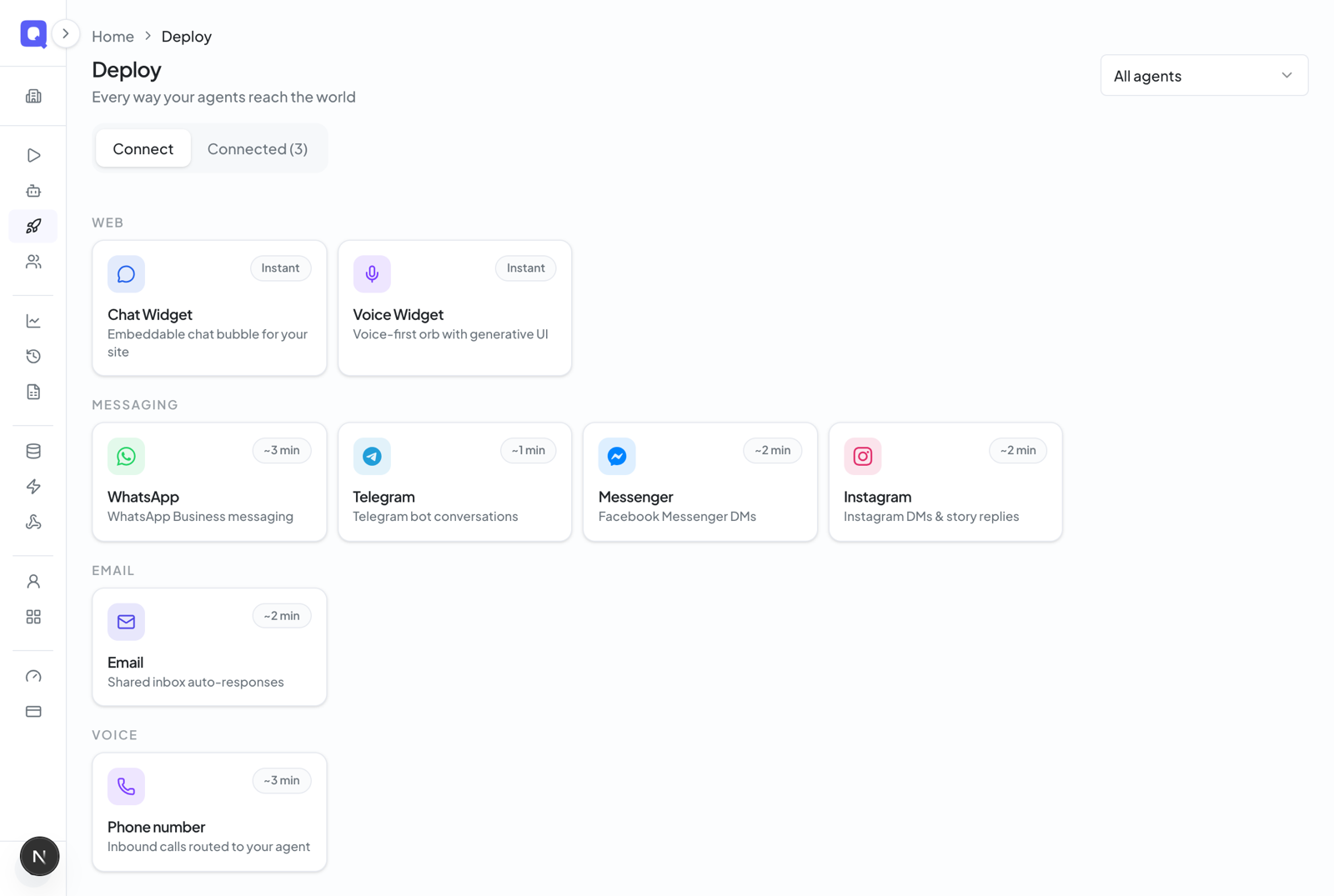
In the dashboard, click Deploy in the left menu. This page shows every place your agent is live. Click Connect a channel, and under Messaging, choose WhatsApp.
Give the channel a name (this is just how it appears in your dashboard) and choose the agent that should answer the messages. If you came here from an agent's page, it's already picked for you.
Click the green Connect with WhatsApp button. A Meta window opens — sign in with the Facebook account that manages your business, then select (or create) your WhatsApp Business Account and pick the phone number your agent should answer. Qalyb never sees your password.
Open WhatsApp on your own phone and message the number. Say hello in any dialect — your agent should reply within a second or two.
What your agent understands on WhatsApp
WhatsApp is the richest channel in Qalyb. Besides plain text, your agent handles what customers actually send:
- Voice notes — the agent listens, answers, and even replies with a voice note of its own.
- Photos — the agent can see what's in the picture and respond to it.
- Documents — accepted and saved with the conversation.
Customers get the blue read ticks they expect, and everything shows up in your conversation view exactly like a WhatsApp thread.
Reading the conversations
Click the WhatsApp channel on the Deploy page to open it. The Conversations tab shows each chat as a familiar WhatsApp-style thread — green agent bubbles, white customer bubbles, photos and voice notes right in the thread, with Arabic shown right-to-left.
The Configuration tab shows the connected number and lets you hand the channel to a different agent without reconnecting.
Sending messages yourself
Your agent replies automatically, but you can also send messages from the channel's Send Message dialog. WhatsApp has one important rule here, set by Meta, and Qalyb shows it as two modes:
- Direct (24h reply) — a free-form message, allowed only within 24 hours of the customer's last message to you.
- Template (outbound) — a pre-approved message you can send any time, even to start a conversation. Reminders and confirmations work this way.
To reach many customers at once — reminders, promotions, follow-ups — use Campaigns instead of sending one by one.
For developers
Everything above is also available over the REST API, using the channel id from the channel's page. A direct reply (within the 24-hour window):
curl -X POST https://api.qalyb.ai/channels/ch_abc123/send \
  -H "Authorization: Bearer sk-live-..." \
  -H "Content-Type: application/json" \
  -d '{
    "recipientId": "+9715XXXXXXXX",
    "message": "Marhaba! Your booking is confirmed for tomorrow at 4 PM."
  }'
A template message (any time):
curl -X POST https://api.qalyb.ai/channels/ch_abc123/send-template \
  -H "Authorization: Bearer sk-live-..." \
  -H "Content-Type: application/json" \
  -d '{
    "recipientId": "+9715XXXXXXXX",
    "templateName": "appointment_reminder",
    "languageCode": "ar",
    "variables": ["Ahmed", "tomorrow", "4 PM"]
}'| Endpoint | Purpose |
|---|---|
GET /channels/whatsapp/signup-config | App and config ids the Meta signup window needs. |
POST /channels/whatsapp/embedded-signup | Finish the connection (code, wabaId, phoneNumberId). |
POST /channels/:channelId/send | Direct text reply — needs the 24-hour window to be open. |
POST /channels/:channelId/send-template | Template message (recipientId, templateName, languageCode, variables[]). |
POST /channels/:channelId/send-media | Image, audio, video, or document — WhatsApp only. |
GET/POST /channels/webhook/meta | App-level Meta webhook (shared with Messenger and Instagram). |
What it costs
Each reply your agent sends uses one chat-message credit — the same as the website chat widget. Meta bills its own WhatsApp conversation fees separately on your WhatsApp Business Account.