Let your agent take actions
Out of the box, an agent can only talk. Actions let it do things mid-conversation — look something up, end or transfer a call, send an email through Gmail, or reach your own systems. After this page, you'll know how to switch them on for your agent.
When your agent decides an action is needed — the caller asks something it doesn't know, or wants to be transferred — it runs the action, gets the result back, and carries on with the conversation. To the caller, the agent simply knew the answer or did the thing.
There are three kinds of actions, and you can give an agent any mix of them:
- Built-in actions — four ready-made tools every workspace gets: web search, reading a website, ending a call, and transferring a call.
- Connected apps (integrations) — actions from external apps like Gmail, Google Calendar, HubSpot, and Slack. The catalog has 500+ apps to choose from.
- Custom actions — actions that call your own systems, like looking up an order or creating a ticket.
The four built-in actions
Every workspace comes with four built-in actions — they appear automatically the first time you open an agent, need no setup, and can't be edited or deleted. You just tick the ones your agent should have.
- Web search (
web_search) — the agent searches the web and reads the top results in real time. Great for live information that isn't in its instructions or knowledge base. It reads up to 5 results per search (3 by default). - Read a website (
crawl_website) — the agent reads a website's pages (up to 25 per crawl, 10 by default) into a knowledge base named after the site, so it can search that content in later turns. The reading happens in the background, and the site must be publicly reachable. - End the call (
end_call) — the agent wraps up the call gracefully when the conversation is done. - Transfer the call (
transfer_call) — the agent hands the call to another phone number (like+97150XXXXXXX) or to another agent.
Turn actions on for your agent
Open your agent, enter edit mode, and scroll to AI Actions. It's split into three groups — Built-in actions, Custom actions, and Integrations.
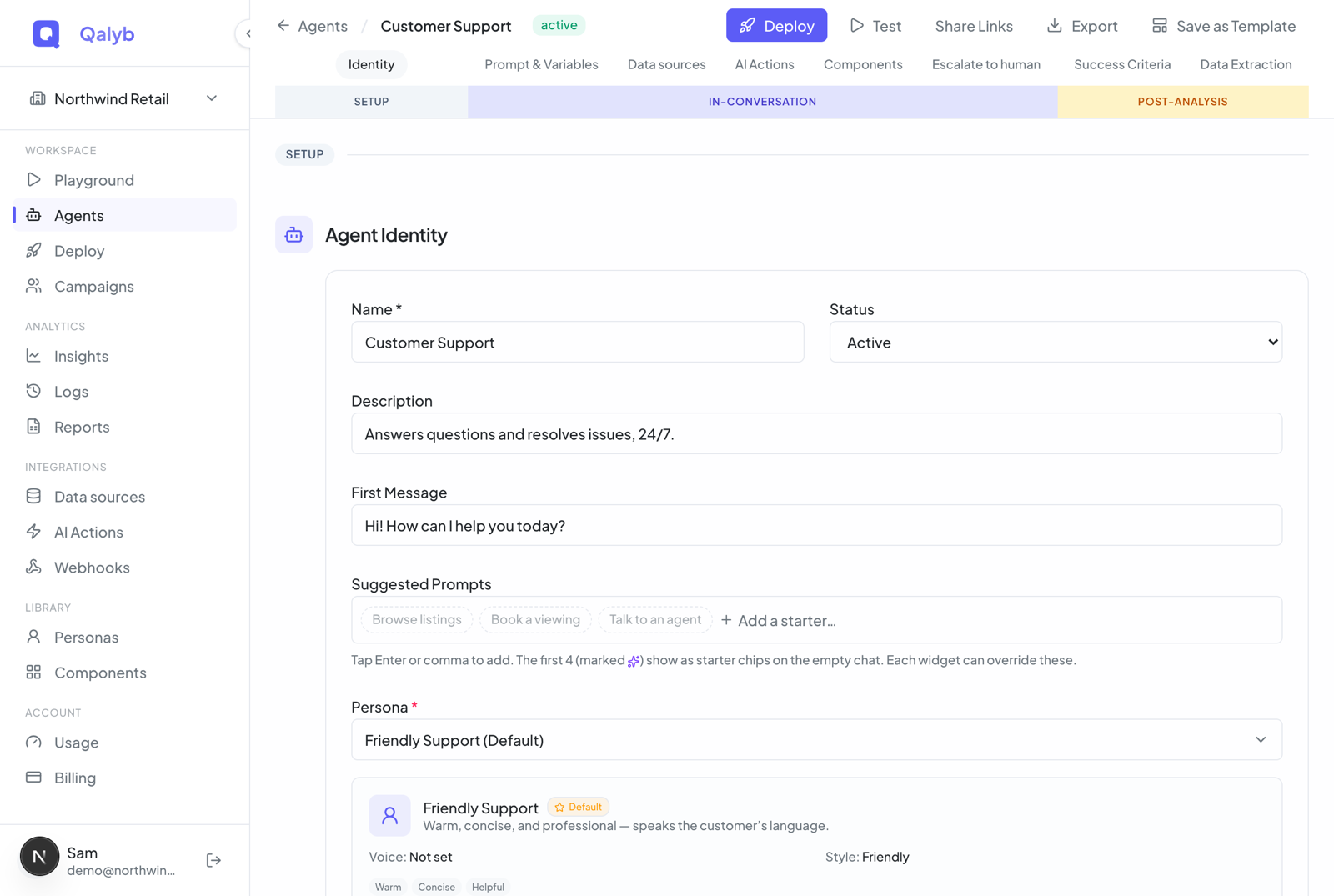
Under Built-in actions, select any of the four ready-made tools — web search, read a website, end call, transfer call.
Under Integrations, flip a connected app on to give the agent all of its tools, or expand it to pick individual ones. Nothing here yet? See Connect an app below.
Under Custom actions, select any custom tools set up for your workspace (if there are none, this group is empty — see the custom actions section below).
Save the agent. From the next conversation on, it can use any of the actions you selected.
Connect an app (integrations)
The integrations catalog lets you connect external apps — Gmail, Google Calendar, HubSpot, Slack, and 500+ more — by signing in once. After that, the app's tools are available to attach to any of your agents.
In the sidebar, open Integrations → AI Actions.
Click Add integration and search the catalog. Click an app's card to see what it does and the list of Available Tools it brings.
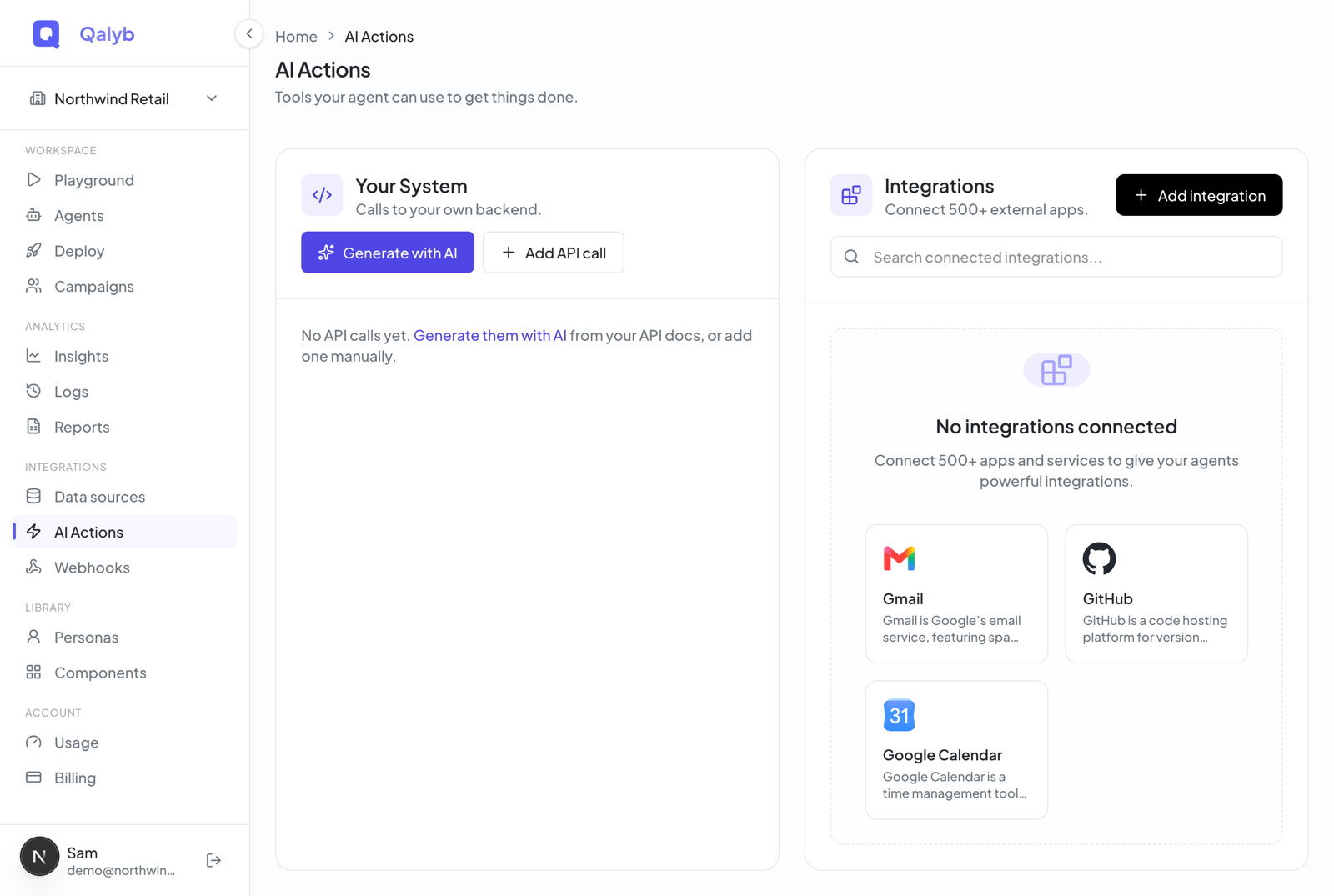
Click Connect. A sign-in window for that app opens — complete the sign-in, and the app's tools import automatically once the account is active.
The app's card now shows a green Connected badge and a count of imported tools. Use Refresh to reload the connection state, or Disconnect to remove the account.
Back in the agent editor's AI Actions section, toggle the app on under Integrations (or expand it to pick individual tools) and save.
Custom actions (reach your own systems)
A custom action calls a web address on your own system with details the agent fills in mid-conversation — look up an order, check inventory, create a ticket, write to your CRM. The agent reads the action's description to decide when to use it, sends the request, and folds the answer into its reply.
For developers
The exact parameters behind the built-in tools:
web_search
| Parameter | Type | Notes |
|---|---|---|
query | string | Required. What to search the web for. |
limit | integer | Optional. Max results to read, 1–5 (default 3). Clamped server-side. |
Search is backed by Firecrawl. Each run records one web.search usage event.
crawl_website
| Parameter | Type | Notes |
|---|---|---|
url | string | Required. The website or page URL to read. Public http(s) only. |
max_pages | integer | Optional. Max pages to read, 1–25 (default 10). |
The tool validates the URL is public, finds or creates a knowledge base named after the hostname (the www. prefix is stripped), and enqueues a background crawl that returns immediately. The crawl itself isn't billed; queries against the resulting knowledge base are metered as kb.query.
end_call and transfer_call
end_call takes an optional reason string. transfer_call takes target (an E.164 phone number or an agent ID) and type ("phone" or "agent").
Webhook tool definition
A custom action is a webhook tool — classic function calling. Once created (via support for now), it's defined by:
| Field | Notes |
|---|---|
name / description | The description is what the model reads to decide when to call the tool — be specific. |
parameters | A JSON Schema object ({ type: "object", properties: {…}, required: [] }) describing the arguments the model must supply. |
endpoint | The URL Qalyb calls. Must be a public http(s) URL. |
method | GET, POST, PUT, PATCH, or DELETE. Default POST. For GET, arguments are sent as query params; otherwise as a JSON body. |
headers | An optional key/value map sent with every request (e.g. an API key). |
localhost, 127.0.0.1, 0.0.0.0, private RFC1918 ranges (10.*, 192.168.*, 172.16–31.*), link-local (169.254.*), and cloud metadata endpoints. Only http/https is allowed.toolIds. You can attach the same set when creating an agent over the API by passing toolIds — see Create agents via API.