Your agent, explained
An agent is one AI worker you set up once and put to work everywhere — answering WhatsApp messages, picking up phone calls, chatting on your website. This page shows what an agent is made of, where everything lives, and what you can do with one.
Think of an agent as a new team member. You give it instructions, a voice, your business information, and the things it's allowed to do — then you put it to work on any channel you like. The same agent can answer a WhatsApp chat, pick up a phone call, and power the chat box on your website, without you rebuilding it for each one.
What an agent is made of
- Instructions — the agent's standing brief, its opening line, and the placeholders that personalize each conversation. See What your agent says.
- A voice and dialect — supplied by a reusable persona that bundles voice, language, dialect, and tone. See Voice & dialect.
- Your business info — knowledge bases (shown as Data sources) the agent answers from instead of guessing. See Add your business info.
- Actions — things the agent can actually do: built-in actions, custom actions that call your own systems, and ready-made toolkit integrations. See Let it take actions.
- Rich replies in chat — the cards, buttons, and other UI the agent can show inside a chat window. See Rich replies in chat.
- Grading rules — Success Criteria (weighted rules with a passing score that grade every conversation) and Data Extraction (named details the agent pulls out of each conversation for your records).
Where your agents live
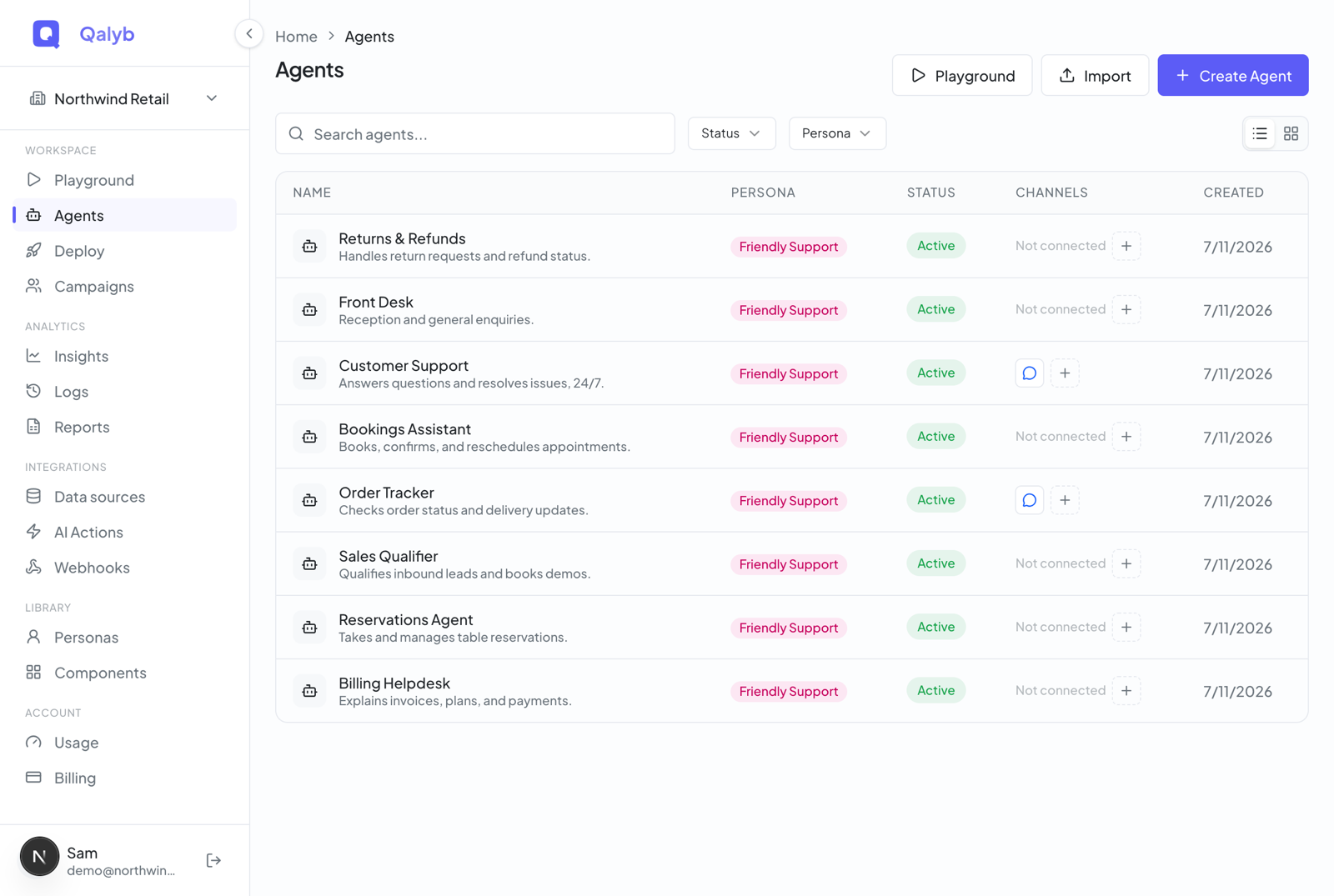
Click Agents in the left menu to see every agent in your organization, newest first. Each one shows its name and description, a status badge (Active, Paused, or Archived), the persona it uses, and the channels it's connected to. You can search by name and description, filter by status and persona, and switch between list and grid views — your choice is remembered. The dashed + in the Channels column jumps straight to connecting that agent, and the list shows 10 agents per page.
Create, test, deploy
Every agent goes through the same three moves.
Click Create Agent on the Agents page. A full-screen wizard opens: give it your website address and a short description of the job, and Qalyb generates a working agent for you — instructions, a suggested persona, and a knowledge base built from your site. The wizard ends by dropping you straight into the Playground.
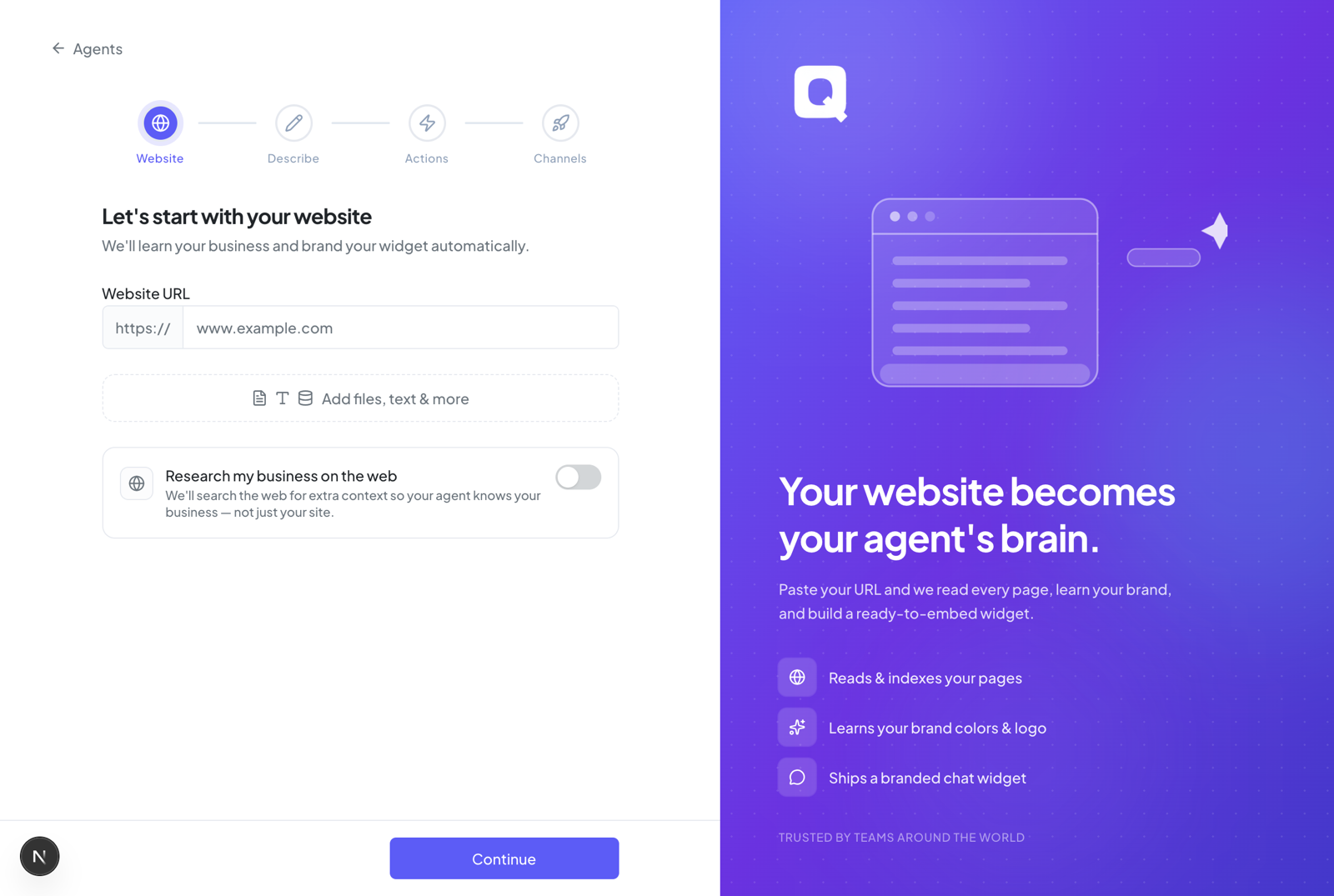
The Playground opens as soon as generation finishes, so you can talk to your new agent right away — over voice or chat. Come back any time with the Test button at the top of the agent's page.
Click Deploy at the top of the agent's page to open the Channels hub, where you connect the agent to a chat widget, WhatsApp, Telegram, a phone number, email, and more. See Where it works.
/agents/new?mode=advanced, or deep-link a template with /agents/new?templateId=….If the wizard interviews you
When you submit the wizard, Qalyb checks how much detail your description carries. If it's rich enough, you get your agent in one shot. If it's too thin, the wizard asks a short interview instead — 2 to 6 multiple-choice questions, each filling in a missing piece: the job to be done, the audience, how conversations should flow, when to escalate, what data to capture, guardrails, and tone. Every question comes with a recommended answer, and you can Skip to generate right away or go Back a question. Your answers are woven into the generated instructions.
Inside the agent builder
Open any agent to reach its builder, which is organized in the order a real conversation unfolds:
- Setup — the agent's identity (name, status, description, and the First Message it opens with) and its required persona.
- In-conversation — the instructions and variables, your data sources, the agent's actions, and its chat UI.
- Post-analysis — the Success Criteria that grade each conversation and the Data Extraction fields captured from it.
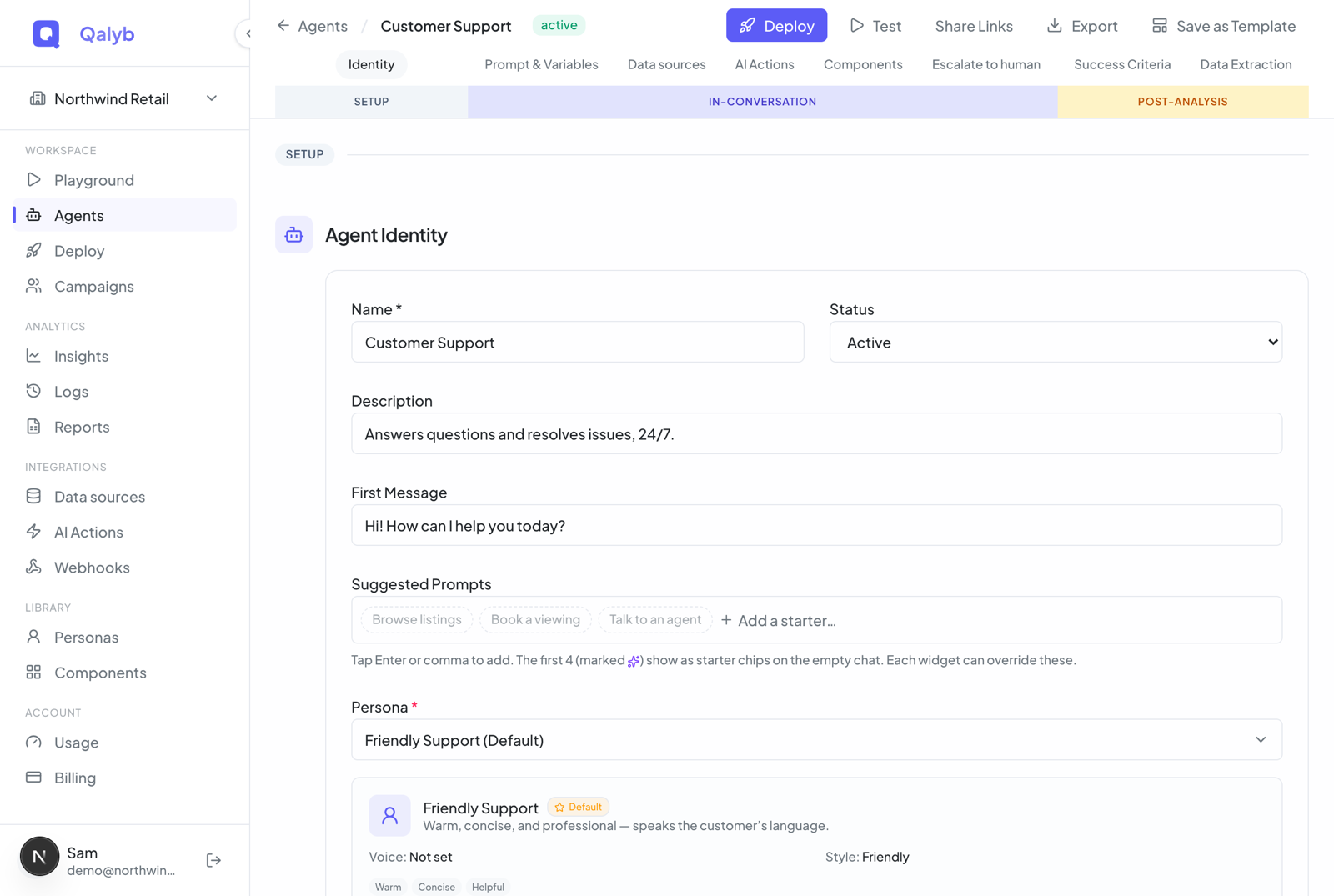
The sticky bar across the top groups everything you can do to an existing agent:
| Action | What it does | Who can use it |
|---|---|---|
| Deploy | Opens the Channels hub to connect the agent to a channel. | Org members |
| Test | Opens the Playground to talk to the agent over voice or chat. | Org members |
| Share Links | Creates public, no-login URLs to the agent, with optional password, expiry, and outbound-call opt-in. | Org members |
| Save as Template | Snapshots the current setup into a reusable template under a category. | Org admin |
| Delete | Archives the agent and disconnects it everywhere (see below). | Org admin |
Share it with a link
Share links let anyone talk to your agent through a URL — no Qalyb account needed. From Share Links in the builder's top bar, create a link with a name, an expiry (24 hours, 7 days, 30 days, or never), an optional password, and an Allow outbound calls toggle. You get a QR code and the URL with Copy, Open, Open HQ, and Email actions, and each link keeps its own conversation history that you can review and delete. More in Share links.
Reuse what works
Save as Template turns a finished agent into a starting point: org admins pick a category, name, and description, and the template then appears in both creation flows — the wizard's Start from a template picker and the advanced From template selector.