Read your conversations & transcripts
After this page you'll know how to find any conversation your agents have had, read the full transcript, play the recording, and check the post-call report.
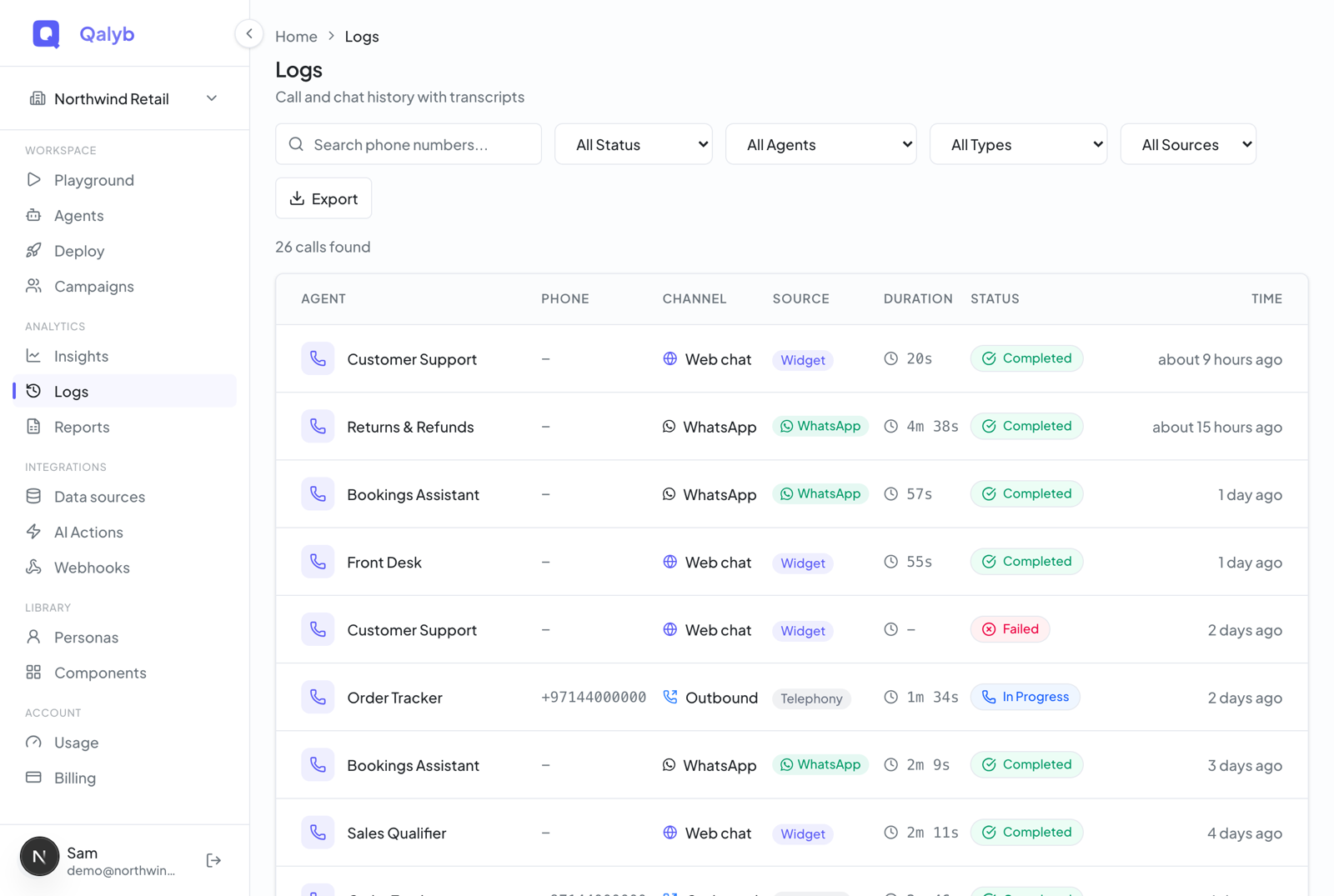
Open Logs from the Analytics group in the sidebar. It lists every session your agents have handled — inbound and outbound voice calls plus widget, share-link, and messaging chats — in one table. Each row is one conversation; click it to open the transcript, recording, post-call report, and webhook deliveries for that session.
Use Insights to spot a trend; use Logs to read the actual conversation behind it — it always shows the exact, per-session record.
Find the conversation you want
Each row shows the agent that handled the session (as a link), the phone number (blank for chats), the direction, where the session came from, how long it lasted, its status, and when it started. The filter bar above the table narrows the list, filters combine, and every filter is reflected in the URL — so a filtered view is a link you can bookmark or share. You could, for example, show only failed outbound calls from a single agent.
| Control | Options |
|---|---|
| Search | The Search phone numbers... box matches against the from / to numbers on a session. |
| Status | All Status, Completed, In Progress, Failed, Queued, Ringing, No Answer, Agent Timeout, Agent Error. |
| Agent | All Agents, or any single agent. |
| Direction | All Types, Inbound Call, Outbound Call, Chat. |
| Source | All Sources, Playground, Widget, Share Link, Campaign, API, Telephony, WhatsApp, Telegram. |
Results come 20 rows at a time — use Previous / Next to page through. To search what was said in conversations rather than phone numbers, use the transcript search in the developer section below.
Open a session
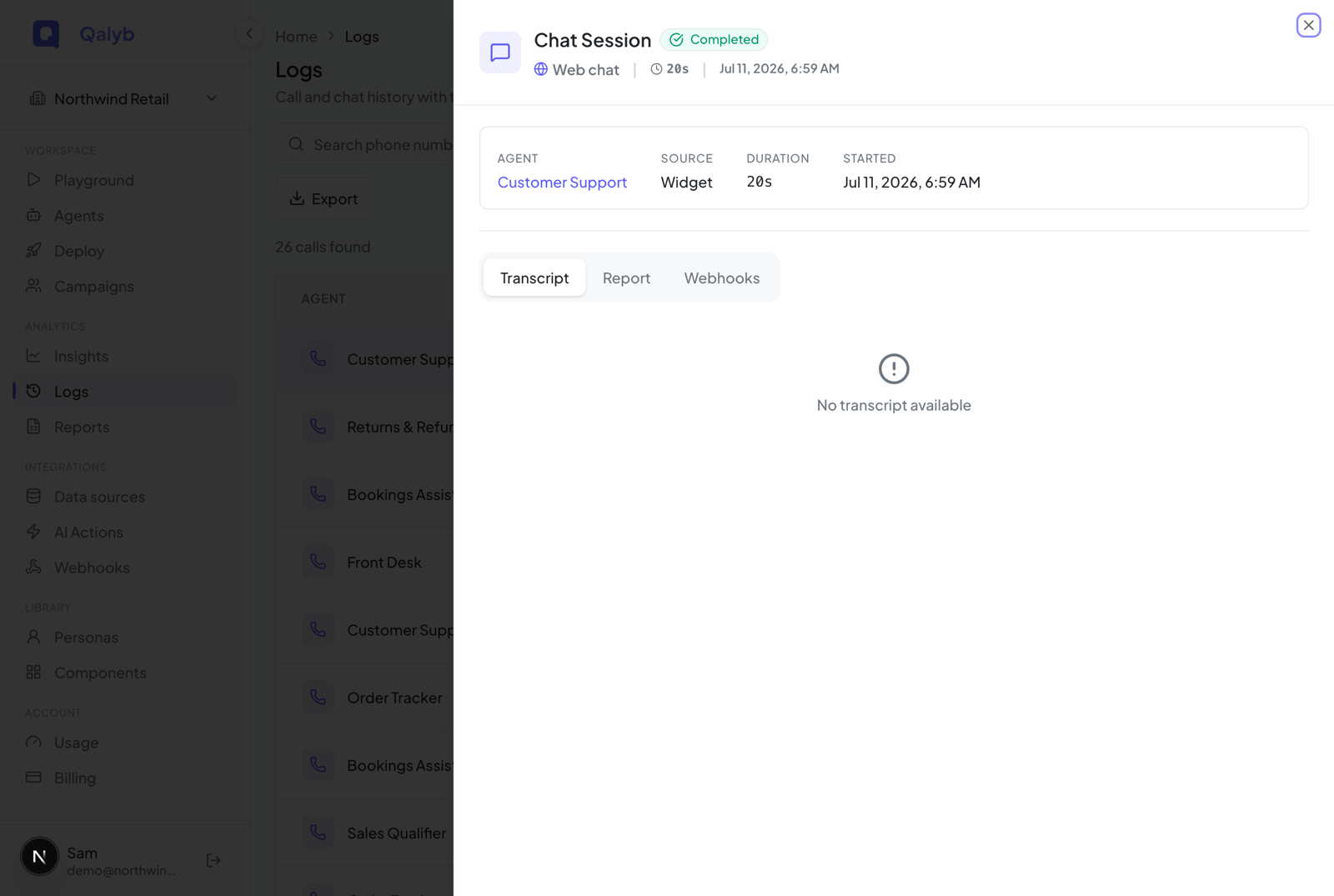
Selecting any row opens the detail sheet on the right. A session is also linkable directly via the ?callId= URL parameter, so you can send a teammate straight to a specific conversation.
The top of the sheet shows the agent (as a link), source, duration, start time, and the from / to numbers for voice calls.
For voice calls, a recording player appears with a download button. Chats don't have recordings.
Move between the Transcript, Report, and Webhooks tabs to see what was said, the post-call analysis, and any webhook deliveries for the session.
Three views of the transcript
The Transcript tab shows the turn-by-turn conversation, in three sub-views:
- Raw — the transcript exactly as it was captured during the session, turn by turn.
- Enhanced — a cleaned-up version produced after the call (punctuation, speaker labels, formatting).
- Diff — a side-by-side comparison of Raw vs Enhanced so you can see what was changed.
The post-call report
The Report tab holds the AI-generated post-call analysis. Once the session completes and the analysis has run, it can include:
- Summary — a short recap of the conversation.
- Sentiment — the overall caller sentiment.
- Key Topics — the main subjects discussed.
- Action Items — follow-ups surfaced from the conversation.
- Success Criteria — pass / fail against the agent's goals, with a % Score.
- Extracted Data — structured fields the agent captured during the call.
Report available after call completes; once it finishes it moves through Queued for analysis and Analyzing transcript. Post-call analysis is a Pro and Ultra capability — on Free and Starter, sessions show No report data available and leave sentiment and success score empty.Recordings
Voice calls are recorded as audio-only MP4 files. The player in the sheet streams the recording, and the download button hands you the same file.
initializing, recording, processing, or failed while it is being prepared, so a brand-new call may not have a playable file for a moment. Recording links expire after one hour — if one goes stale, reopen the sheet to refresh it.Chats and shared files
Chat sessions read the same way, minus the recording. When a visitor uploads files during a chat, a Files shared section lists them in the sheet. Sessions that ran inside the Voice Widget also get a Voice Widget tab and badge so you can follow the agent's timeline for that conversation.
Export what you see
The Export button in the filter bar creates an export that carries your current filters (status, agent, direction, source, search) and takes you to Reports, where the Excel file is built in the background and becomes downloadable when ready.
For developers
Everything in Logs is available over the API. All read endpoints require the calls:read permission; deleting sessions requires calls:write.
List sessions
GET /calls returns sessions with the same filters as the UI — limit, offset, status, agentId, direction, source, shareLinkId, and search (phone-number match).
curl "https://api.qalyb.ai/calls?limit=20&direction=inbound&status=completed&search=971" \
  -H "Authorization: Bearer sk-live-..."
Fetch a transcript
GET /calls/:id/transcript returns the raw transcript turns plus a fullText. Use GET /calls/:id/enhanced-transcript for the cleaned version (it reports a status of completed, pending, processing, or not_available).
curl https://api.qalyb.ai/calls/call_abc123/transcript \
  -H "Authorization: Bearer sk-live-..."
Get the recording and report
GET /calls/:id/recording returns a signed audio URL (valid for one hour), and GET /calls/:id/report returns the post-call report — summary, sentiment, successScore, criteriaResults, extractedData, keyTopics, and actionItems.
curl https://api.qalyb.ai/calls/call_abc123/recording \
  -H "Authorization: Bearer sk-live-..."
Search transcript content
GET /calls/search runs a full-text search across transcript content (not just phone numbers), accepting q, agentId, dateFrom, and dateTo.
curl "https://api.qalyb.ai/calls/search?q=refund&dateFrom=2026-06-01&dateTo=2026-06-27" \
  -H "Authorization: Bearer sk-live-..."
Delete sessions
DELETE /calls/:id removes one session, and POST /calls/bulk-delete removes up to 200 at once. Both require the calls:write permission.