Reports & exports
Reports turns your call and campaign history into downloadable Excel workbooks. You start an export from the page whose data you want, and pick up the finished file here — this page shows you the whole loop.
Where Insights gives you live dashboards and Logs gives you a session-by-session table, Reports lets you pull that same data out as a spreadsheet — a full Excel (XLSX) workbook of call logs or campaign results, built in the background and downloadable when ready. Find it in the sidebar under the Analytics group.
How exports work
An export is a background job, not an instant download. When you start one, Qalyb reads the matching sessions, builds the workbook, and stores the file. The job moves through four states — pending → processing → completed (or failed) — and the Reports table shows the current state with a status badge and a spinner while it works. Once a row reaches completed, a Download action appears.
One thing to know: you don't start exports on the Reports page. You start them from the page whose data you want, and Reports is where the finished files land:
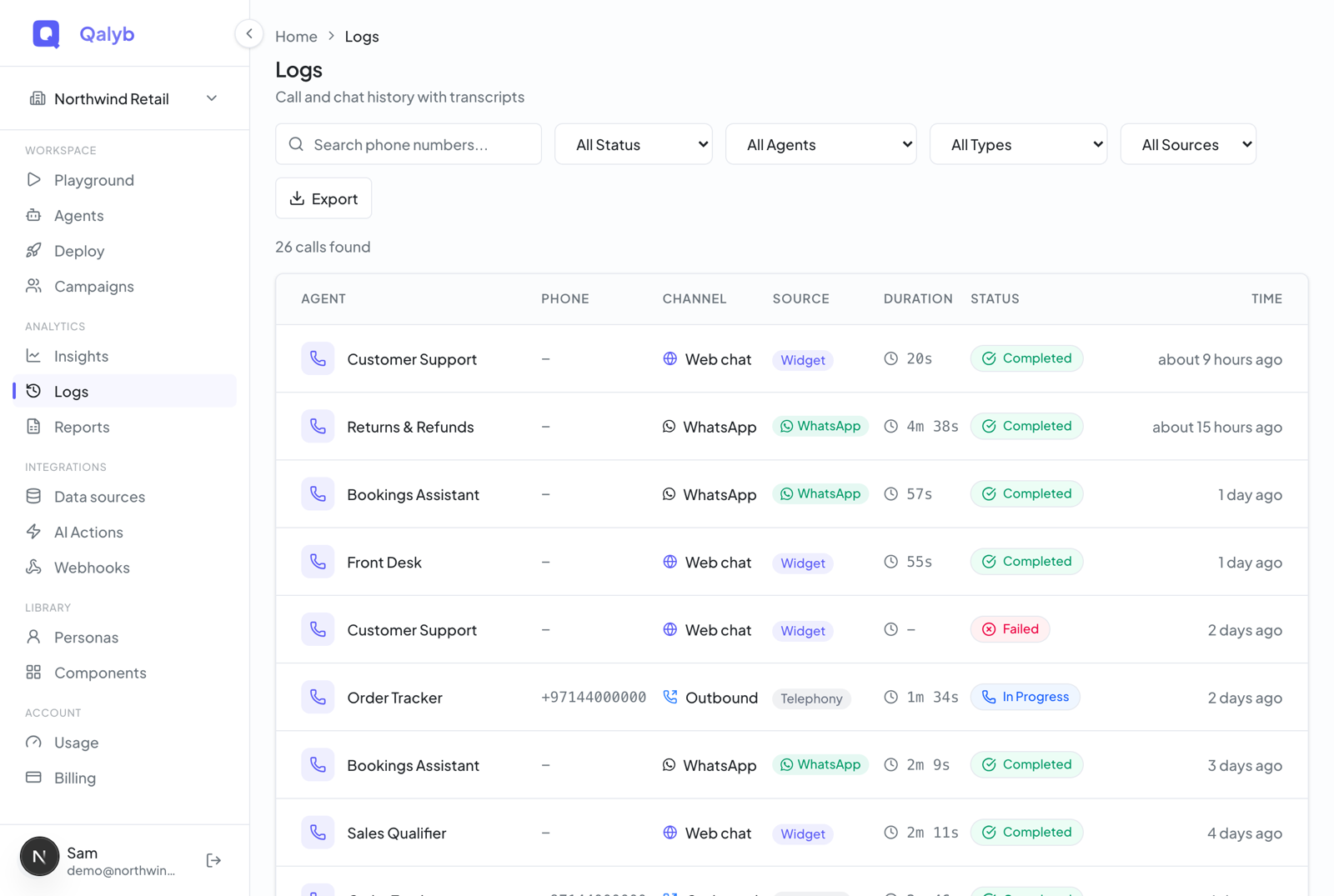
- Logs export — created from the Logs page's Export button. It carries whatever filters you have active (status, agent, direction, source, search), so the export matches exactly the rows you were looking at.
- Campaign export — created from a campaign on the Campaigns page, producing a workbook of that campaign's calls and outcomes.
Run your first export
Open Logs and narrow the table with the search box and the Status, Agent, Direction, and Source dropdowns. The export inherits these filters, so dial in exactly the rows you need — for example, only completed inbound calls for one agent.
The Export button in the Logs filter bar creates the export with your active filters and takes you straight to the Reports page.
On the Reports table your new row starts as pending, flips to processing (with a spinner), and lands on completed once the workbook is built.
Click the Download icon on the completed row and your browser downloads the .xlsx file — ready to open in Excel or Google Sheets.
Use the Delete (trash) icon to remove an export — this deletes both the job and the stored file. You can't delete a job while it is still pending or processing.
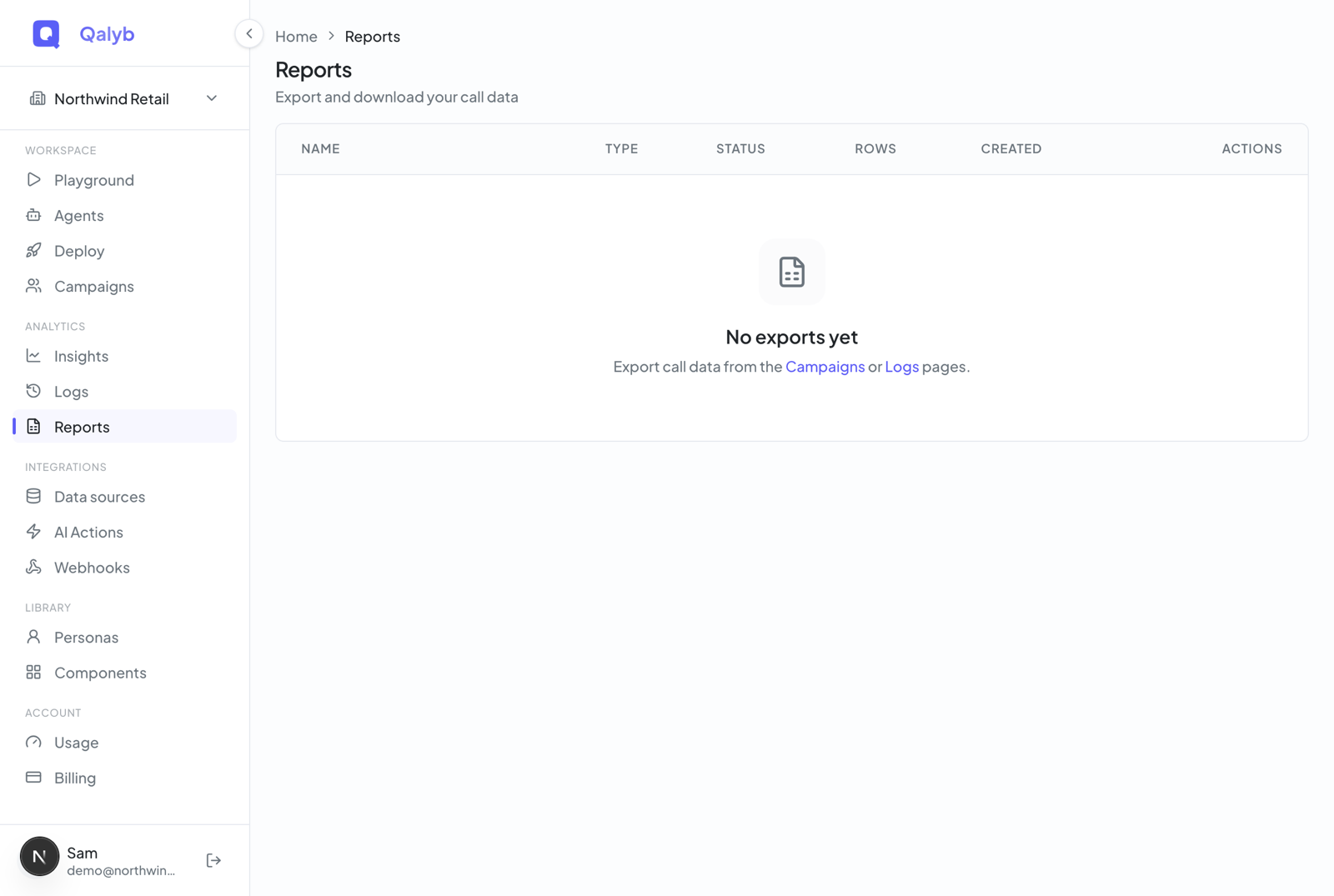
Reading the Reports table
| Column | What it shows |
|---|---|
| Name | Auto-generated label, e.g. Call Logs · completed · <agent> or Campaign: <name>. |
| Type | A badge — logs or campaign — set by the page that created the export. |
| Status | pending, processing, completed, or failed. |
| Rows | The number of rows written into the workbook. |
| Created | When the export job was queued. |
| Actions | Download (enabled only when completed) and Delete (disabled while pending / processing). |
When you have no exports yet, the page shows an empty state pointing you to the Campaigns or Logs pages to start one.
What's inside a report
A logs workbook contains a row per session with the same core fields you see in Logs — agent, phone numbers, direction, source, duration, status, and timestamps — plus the post-call analysis fields when they are available. Those analysis fields are what make a report genuinely useful for QA and reporting:
| Field | What it captures |
|---|---|
| Summary | A short natural-language recap of the conversation. |
| Sentiment | The caller's overall sentiment (positive / neutral / negative). |
| Key topics | The main subjects raised during the conversation. |
| Action items | Follow-ups the agent or your team should take after the call. |
| Success criteria & score | Whether the call met the criteria you defined, with a percentage success score. |
| Extracted data | Structured fields the agent captured during the call (names, dates, order numbers, and so on). |
Good to know
- The format is always XLSX. For a quick CSV of dashboard KPIs, use the Export button in the Insights header instead.
- Download links expire after one hour. The Reports page fetches a fresh one each time you click Download, so links never go stale in the dashboard.
- Data retention applies. Exports only contain sessions still within your plan's retention window (Free 14 days, Starter 30, Pro 90, Ultra 365). Pull reports before older sessions age out.
- Failed jobs are safe to delete. If a job lands on
failed, delete it and start a fresh export — a common cause is a filter that matched no rows.
For developers
Everything the Reports page does is backed by a small REST surface. Reads require the calls:read permission; deletes require calls:write. Creating an export is entitlement-checked against the reports feature.
Create an export
POST /exports queues the job and returns the new export record in its initial pending state. The type is logs or campaign; filters mirror the Logs filters (status, agentId, direction, source, search, plus optional dateFrom / dateTo).
curl -X POST https://api.qalyb.ai/exports \
  -H "Authorization: Bearer sk-live-..." \
  -H "Content-Type: application/json" \
  -d '{
    "type": "logs",
    "name": "Completed calls · Bookings Concierge",
    "filters": {
      "status": "completed",
      "agentId": "agt_abc123",
      "direction": "inbound",
      "source": "telephony"
    }
}'pending + processing) at once. A sixth POST /exports returns 400 Maximum 5 concurrent exports allowed. Let running jobs finish (or delete completed ones) before starting more.List exports
GET /exports returns your export jobs, newest first. limit defaults to 20 (max 100) and offset pages through results.
curl https://api.qalyb.ai/exports?limit=20 \
  -H "Authorization: Bearer sk-live-..."
Fetch one export
GET /exports/:id returns the job detail. When the status is completed, the response includes a downloadUrl — a signed link valid for one hour. Re-fetch to get a fresh URL if it expires.
{
  "id": "exp_8f21c0",
  "type": "logs",
  "name": "Completed calls · Bookings Concierge",
  "status": "completed",
  "rowCount": 412,
  "downloadUrl": "https://storage.qalyb.ai/exports/exp_8f21c0.xlsx?...signed...",
  "createdAt": "2026-06-27T09:14:00Z"
}
Delete an export
DELETE /exports/:id removes the job and its stored file. As in the UI, you cannot delete a job that is still pending or processing.