Reach out with campaigns
A campaign lets your agent reach a whole list of people for you — by phone call or WhatsApp. Upload your contacts, pick the agent, and Qalyb works through the list while you watch progress live.
A campaign takes a list of contacts and reaches every one of them through a single channel, with the same agent handling each conversation. Qalyb dials the numbers or sends the WhatsApp messages — then tracks each contact's progress and hands any reply straight back to the agent. You'll find campaigns under Campaigns in the Workspace group of the dashboard sidebar.
What goes into a campaign
Every campaign — whatever the channel — is built from the same four ingredients. You decide who to reach, who reaches them, and when:
- Your contacts come from a CSV file you upload. Qalyb cleans the list for you — phone numbers are converted to the international E.164 format, and invalid, duplicate, and assumed entries are flagged — so no contact is reached twice.
- A sender is who the outreach comes from: a phone number for voice or a WhatsApp channel for WhatsApp.
- An agent runs the conversation. If your agent's prompt has required variables, each one needs a matching column in your CSV so every contact gets a personalized conversation.
- Send rules control timing — send now or schedule for later, keep calls inside an operating-hours window, retry failed voice calls, and (for messaging) add follow-up nudges when a contact doesn't reply.
Once launched, Qalyb works through the list in the background. A campaign marks itself done on its own when every contact has reached a final outcome — connected or exhausted on voice, replied or expired on messaging.
{{column_name}} placeholders to personalize each conversation.Creating a campaign
Campaigns are built in a step-by-step wizard. Click New Campaign at the top-right of the Campaigns page to open it — four steps for voice, and five for WhatsApp once it launches (it adds a Message step). Create a campaign walks through every screen, and Contacts & follow-ups covers preparing your list.
05xxxxxxx becomes +966xxxxxxx. GCC countries are listed first. Numbers that can't be converted block the launch until you fix or remove them.Calls vs. messages
The channel you pick changes more than the wizard — it changes how the campaign runs and what you see on its detail page. There are two families: voice campaigns place live phone calls, and async campaigns (WhatsApp) send messages and wait for replies.
| Aspect | Voice | Async (WhatsApp) |
|---|---|---|
| Sender | Phone Number | WhatsApp Channel |
| Wizard length | 4 steps | 5 steps (adds a Message step) |
| Per-contact tracking | Call Log with attempts | Delivery Log with delivery status |
| Timing controls | Operating Hours + Retry policy | Send Window + Campaign Expiry + Follow-up cadence |
| Reaching a contact again | Automatic retry on failed / no-answer | Follow-up nudges until reply, opt-out, or bounce |
| Final outcomes | Connected, no-answer, busy, voicemail, failed, max retries | Delivered, read, replied, no response, opted out, bounced, failed |
Voice campaigns
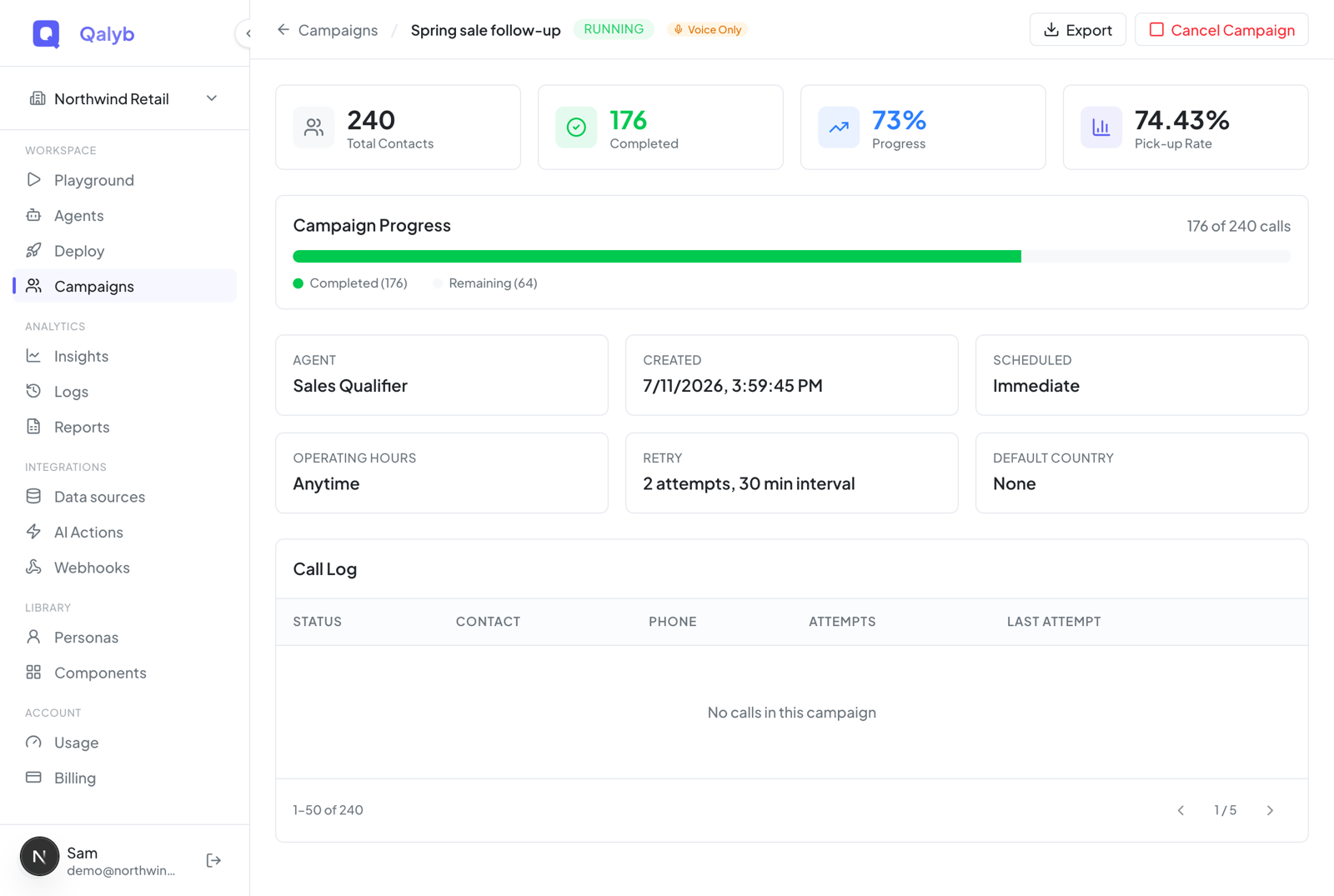
A voice campaign dials each contact in turn within your operating hours. The detail page shows four KPI cards (Total Contacts, Completed, Progress, Pick-up Rate), a progress bar, a summary of the campaign's settings, and a Call Log with one row per contact — status, phone, attempts, and last attempt. Rows with multiple attempts expand to show each attempt's status, duration, and time. While the campaign is active you can retry an individual failed or no-answer call, and the list refreshes itself every five seconds.
WhatsApp campaigns
WhatsApp campaigns send a message and then track its journey. The detail page shows KPI cards for Total Contacts, Sent, Delivered, and Replied, plus a Delivery Funnel visualizing Sent → Delivered → Read → Replied, with chips for final outcomes like No response, Opted out, Bounced, and Failed. The table becomes a Delivery Log showing each recipient's status, follow-ups sent, and last sent time. A reply ends the journey: it hands the contact to the agent conversation and stops any pending follow-ups.
The campaigns list
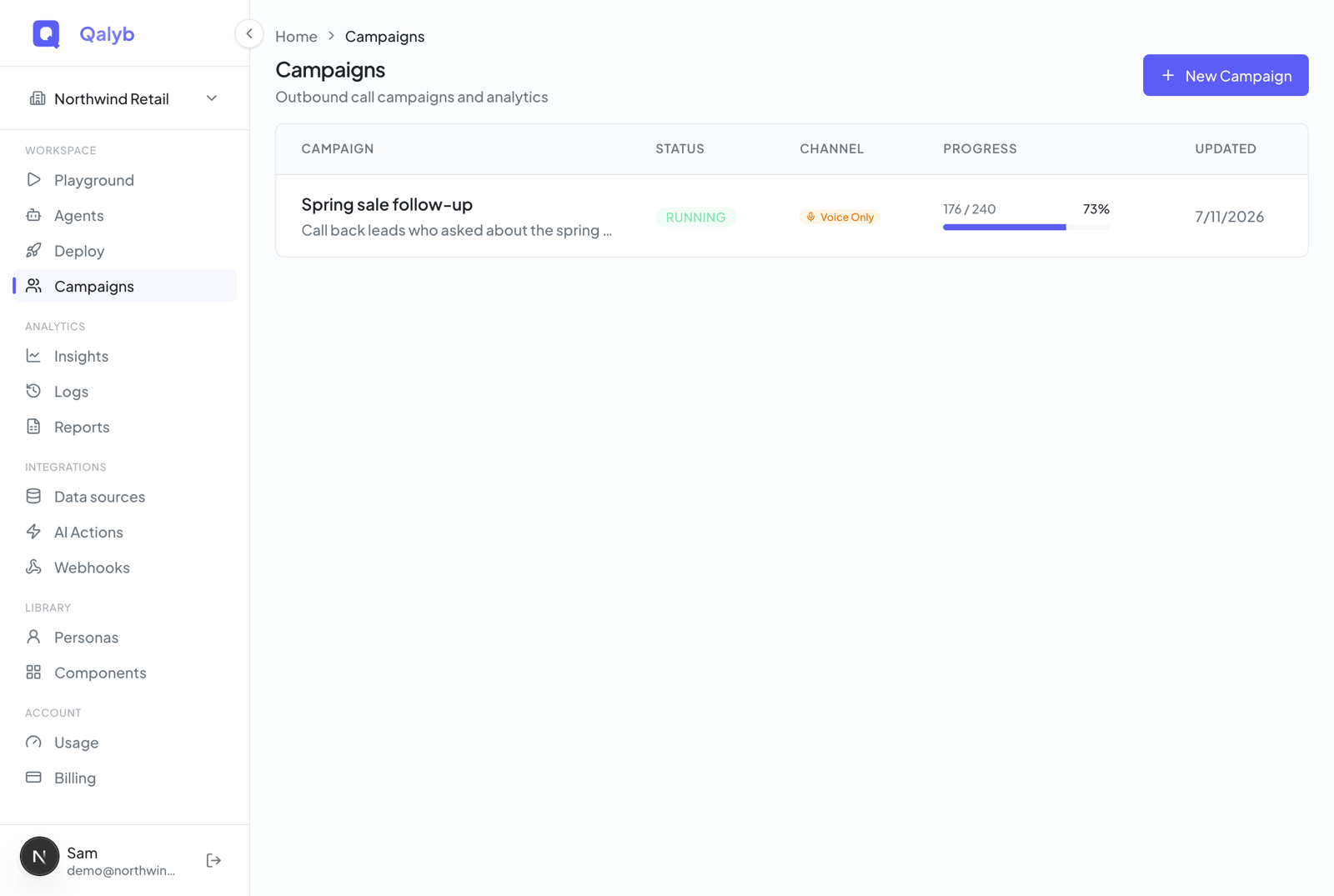
The Campaigns page lists every campaign in your organization, ten per page. Each row shows the campaign name and description, a status badge, a channel pill, a live progress bar (completed contacts over total, with a percentage), and the last-updated date. Click any row to open that campaign's detail page. If you have no campaigns yet, the page invites you to create your first one.
What the statuses mean
| Status | Meaning |
|---|---|
queued | Created and waiting to start — typically a campaign scheduled for later. |
running | Actively dialing or sending. The badge pulses and progress updates live. |
done | Every contact reached a final outcome. The campaign completed on its own. |
cancelled | Stopped early. Queued and in-flight work was drained; pending follow-ups cleared. |
While a campaign runs
Most management happens from the campaign detail page. From the header you can Export the campaign's data (the file lands under Reports) and, while a campaign is queued or running, Cancel it. Voice campaigns additionally let you retry an individual failed call from its row in the Call Log.
done or cancelled — changes are rejected while it is queued or running. Adding contacts after creation is currently supported for voice campaigns only.For developers
Everything the dashboard does is backed by the campaigns API. Outbound campaigns are part of the campaigns.outbound entitlement, and the endpoints require the campaigns:read or campaigns:write permission.
List every campaign for your organization:
curl https://api.qalyb.ai/campaigns \
  -H "Authorization: Bearer sk-live-..."
Cancel an active campaign, draining its queued and in-flight work:
curl -X POST https://api.qalyb.ai/campaigns/cmp_abc123/cancel \
-H "Authorization: Bearer sk-live-..."| Endpoint | What it does |
|---|---|
POST /campaigns | Create a campaign (the body is channel-specific). Requires campaigns:write. |
GET /campaigns/:id | Fetch one campaign with its stats and progress. |
GET /campaigns/:id/calls | Paginated per-contact rows — calls for voice, deliveries for async. |
POST /campaigns/:id/calls/:callId/retry | Re-queue a single failed or no-answer voice call on an active campaign. |
POST /campaigns/:id/cancel | Cancel the campaign and drain queued and in-flight work. |
DELETE /campaigns/:id | Delete a campaign and its calls. Requires campaigns:delete (admin only); rejected while running or queued. |