Test before going live
The Playground is where you talk to your agent before any customer does — by chat and by real voice call, on every channel it can run on. Nothing gets published, and there's no code involved.
The Playground is the first thing you land on after logging in — the sidebar Playground entry and the Qalyb logo both take you there. It lets you rehearse exactly how an agent will behave on every channel it can run on — web chat, the social messengers, email, the phone, and the voice widget. Each channel looks like the real thing: a WhatsApp test looks like WhatsApp, and a phone test looks like a real incoming call.
Iterate here until the agent sounds right, then head to Deploy to put it live.
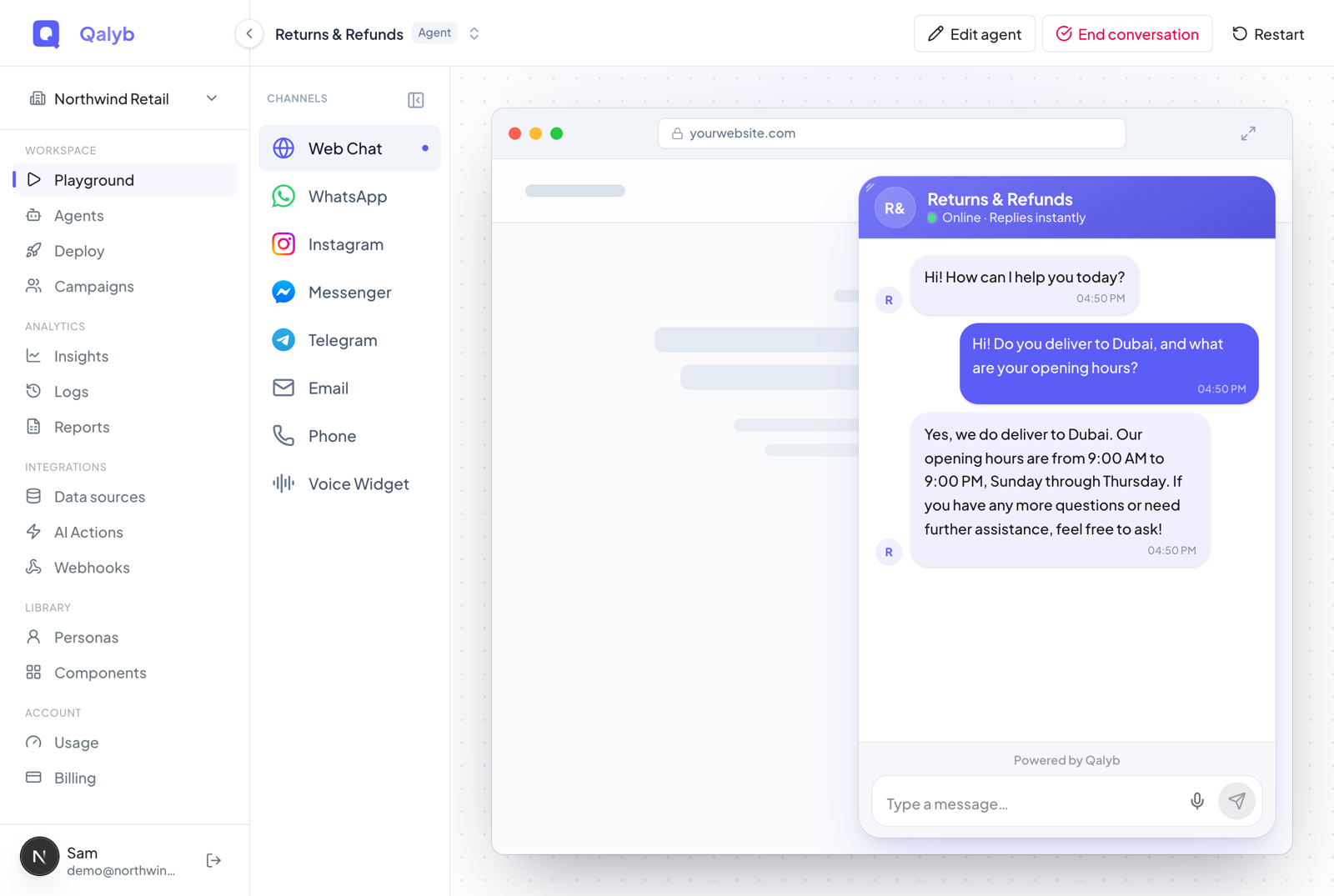
Click Playground in the sidebar (or the Qalyb logo). If you arrive from an agent's page, that agent is already selected for you.
Use the agent switcher in the top bar — a searchable list with a checkmark on the current agent and a Create agent shortcut at the bottom. Switch agents at any time to compare how two setups handle the same question.
If the agent uses conversation details — like the customer's name or branch — a Set up the conversation screen appears first. Fill in the required fields (marked with *), then press Start chat or Start call.
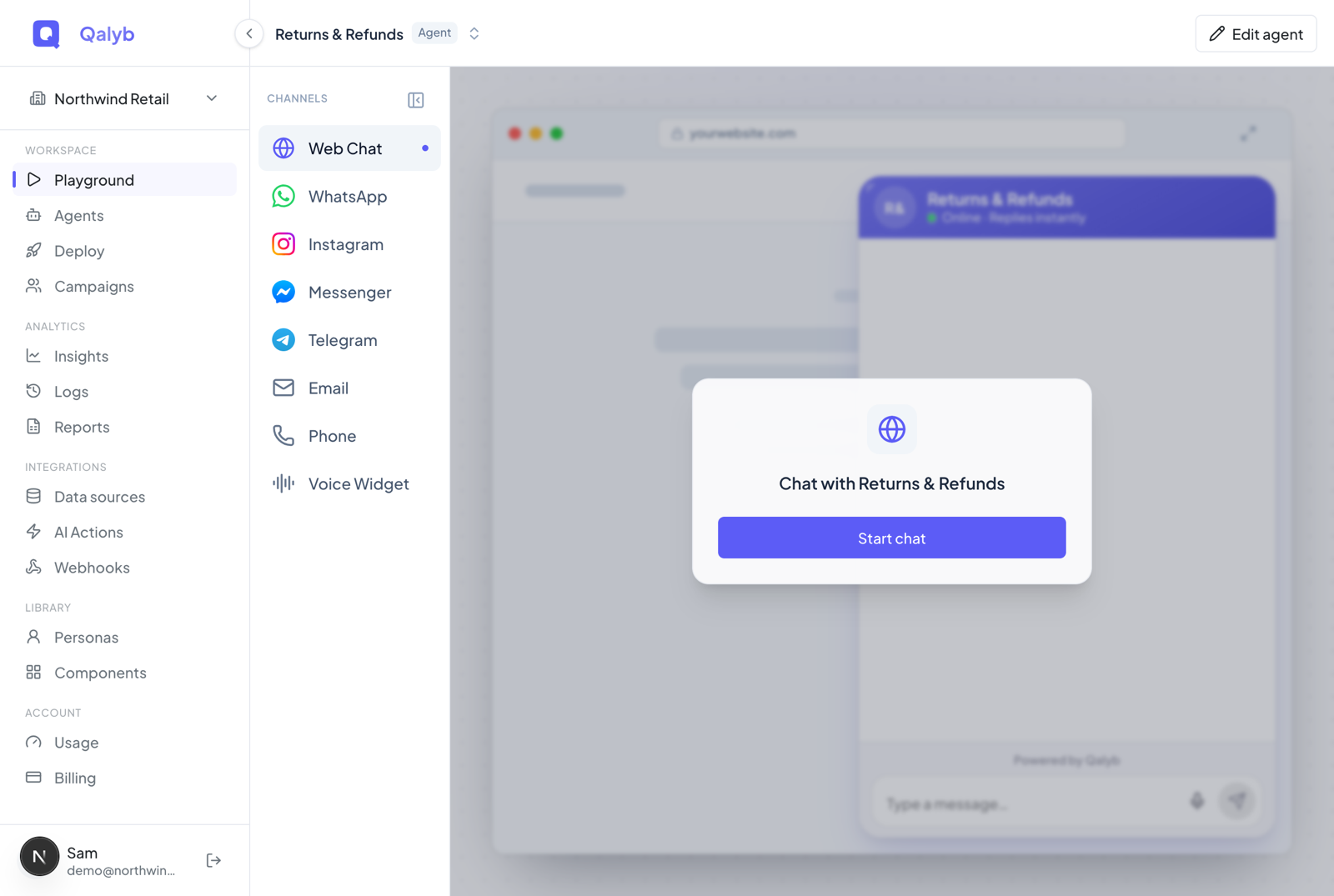
Pick a channel in the left rail — Web Chat, WhatsApp, Instagram, Messenger, Telegram, Email, Phone, or Voice Widget. The rail can be collapsed (your choice is remembered per browser); on a phone it becomes a row of pills.
Type on the chat, email, and social channels, or speak to the agent on the Voice Widget and Phone screens. End a chat with End conversation in the top bar; end a voice or phone session with the red End button on the call screen.
The channels are previews
The channels in the left rail are preview skins — they show you how the agent reads on each surface, but they aren't the production channels you set up in Deploy. Underneath, everything runs on the same engine.
| Channel | Engine | What it shows |
|---|---|---|
| Web Chat | Chat | Themed with your agent's saved widget colors. Shows rich replies (generative UI) where the agent supports them. |
| WhatsApp, Instagram, Messenger, Telegram | Chat | Each in its brand-signature colors, so you can sanity-check tone and length per platform. |
| Chat | The same conversation presented as a threaded, back-and-forth email exchange. | |
| Phone | Voice | A phone frame for incoming (simulated) or outgoing (real) calls — full speech-to-speech. |
| Voice Widget | Voice | The 3D-orb web voice widget, themed with your agent's saved widget colors. Talk to it directly. |
Conversation details (variables)
If your agent's instructions use {{variable_name}} placeholders, the Playground collects real values before the conversation starts and fills them into the instructions. Each detail can be text, a number, or yes/no, can be marked required, and can carry a default value and a short description shown on the setup screen.
- Required details are flagged with
*— you can't start until they're filled in. - The top-bar Variables button lets you change values mid-session — saving restarts the conversation so the new values apply from the first turn.
- Use Restart / New conversation to reset, or Edit agent to jump to the agent's configuration page.
Testing by voice and by phone
The Phone and Voice Widget channels run on the real voice engine, so you're testing the full speech-to-speech pipeline — speech recognition, the AI model, and the voice — not a text approximation. The Phone channel gives you two ways to test:
- Receive a test call — simulates a lock-screen incoming call, so you can answer and talk to the agent as if it had dialed you.
- Dial a real number — opens a keypad where you enter a number in international format (for example
+96812345678) and the agent places a real outbound call to it.
On the call screen you can toggle Mute and Captions. The keypad and speaker buttons are decorative in this version.
NO_PHONE_NUMBER or NO_SIP_TRUNK and points you to Telephony settings. The Playground prefers a number linked to the specific agent, then falls back to any active number in your workspace.Your test conversations are saved
Playground sessions aren't throwaway. Every session is saved as a call record tagged as coming from the playground, and test calls are recorded just like production calls — so they appear in your call history and analytics alongside real traffic. That makes the Playground a handy way to generate sample transcripts to review later.
Iterate quickly
The Playground is built for tight feedback loops. A fast cycle looks like this:
- Talk to the agent on the channel you care about and spot a weak reply.
- Click Edit agent to adjust its instructions, persona, business info, or actions.
- Come back and start a fresh conversation — or, if you only changed conversation details, edit them in the top-bar Variables panel and the conversation restarts in place.
- Compare channels: run the same scenario on Web Chat and on WhatsApp to check the agent adapts its length and tone to each surface.
For developers
The Playground doubles as a code generator. Inside the conversation shell, the API snippet panel shows ready-to-run code for the public Qalyb API in three languages — cURL, JavaScript, and Python. It fills in the real selected agent ID, the phone number, and any variables you entered, and falls back to placeholders (YOUR_API_KEY, agt_xxxxxxxxxxxx, +12025551234) when you haven't supplied them.
Snippets are generated for three modes that map onto the public https://api.qalyb.ai/v1 surface:
| Mode | Endpoint | Use it for |
|---|---|---|
| Voice — inbound / web | POST /v1/calls/web | Starting a browser/web voice call programmatically. |
| Voice — outbound | POST /v1/calls | Placing an outbound phone call to a number you provide. |
| Chat | Chat API | Driving the same agent over a text conversation. |
This is the snippet you get for a web voice call once an agent is selected:
curl -X POST https://api.qalyb.ai/v1/calls/web \
  -H "Authorization: Bearer YOUR_API_KEY" \
  -H "Content-Type: application/json" \
  -d '{
    "agentId": "agt_xxxxxxxxxxxx",
    "variables": {
      "customer_name": "Sara",
      "branch": "Riyadh"
    }
  }'
And for an outbound call to a number:
curl -X POST https://api.qalyb.ai/v1/calls \
  -H "Authorization: Bearer YOUR_API_KEY" \
  -H "Content-Type: application/json" \
  -d '{
    "agentId": "agt_xxxxxxxxxxxx",
    "phoneNumber": "+96812345678",
    "variables": {
      "customer_name": "Sara"
    }
}'api.qalyb.ai/v1 surface — the same API your production integrations use. It's separate from the internal endpoints the dashboard itself calls while you test.