Connect Telegram
After this guide, people can message your Telegram bot and your agent will answer them. Telegram is the fastest channel to connect: no sign-in windows, no approvals — you create a bot, paste one token, and you're done.
In Telegram, search for @BotFather (the one with the blue verified badge) and start a chat. Send the /newbot command — it asks for a display name, then a username that must end in bot (for example acme_support_bot).
BotFather replies with a token that looks like 123456789:AAF…. Copy it — this is the only thing you need. Keep it private: anyone with the token can control your bot.
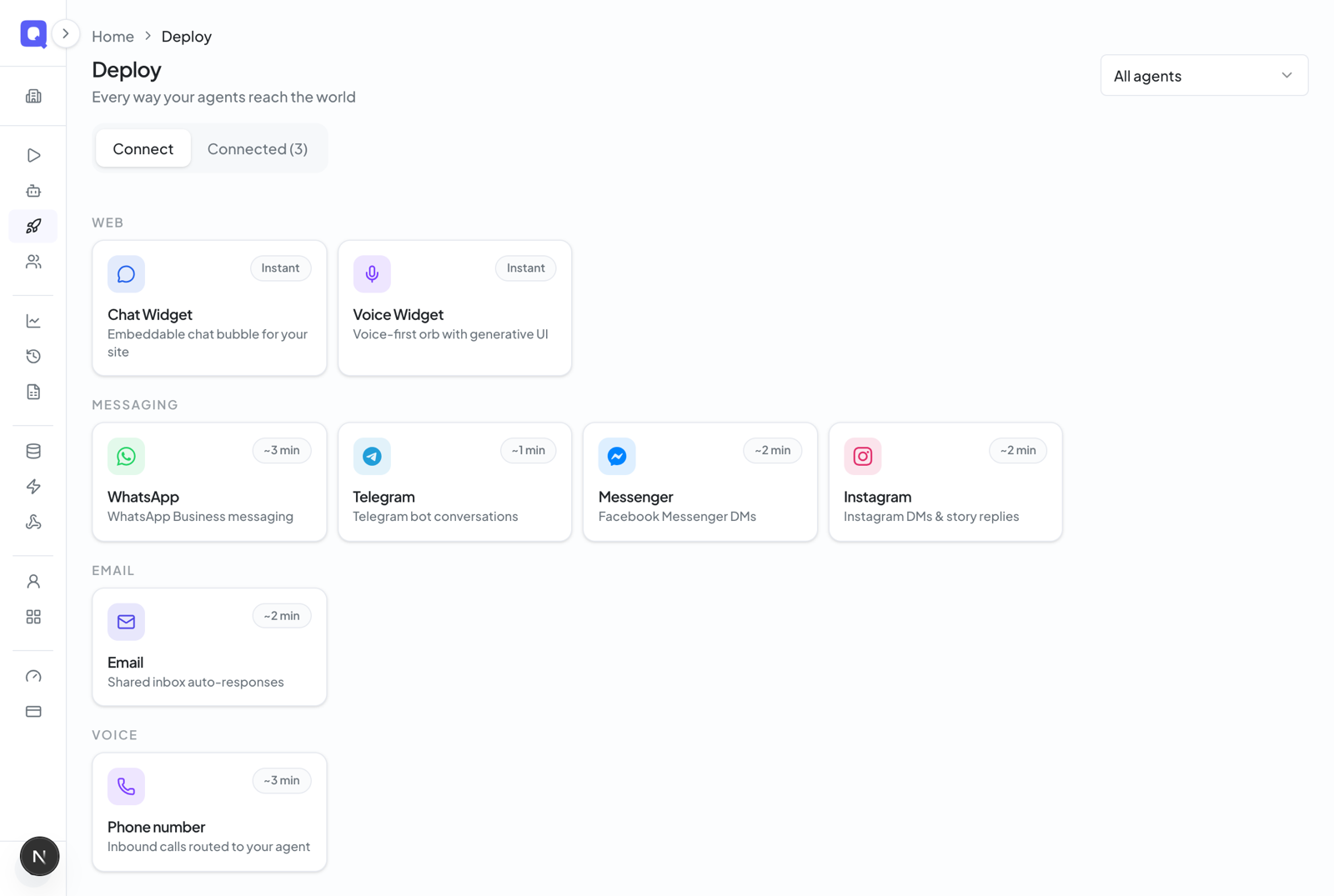
In the Qalyb dashboard, click Deploy in the left menu, then Connect a channel. Under Messaging, choose Telegram — this part takes about a minute.
Give the channel a name (this is just how it appears in your dashboard — say "Support Bot") and choose the agent that should answer. If you came here from an agent's page, it's already picked for you. Paste the BotFather token into the Bot Token field — it shows as hidden dots. You can also add the bot's username so the channel is easier to recognize, but that's optional.
Qalyb creates the channel and sets everything up with Telegram automatically — there is nothing else to configure. The channel appears in your Deploy list with a sky-blue Telegram badge.
Open your bot in Telegram and say hello. You should see a typing indicator, then a reply from your agent within a couple of seconds.
Reading the conversations
Click the Telegram channel on the Deploy page to open it. The header shows the channel's name, agent, and status, with four stat cards: Total Sessions, Active, Total Messages, and Created.
The Conversations tab shows each chat as a familiar thread — agent replies in green bubbles, customer messages in white, with date dividers and delivered ticks, and Arabic shown right-to-left. Conversations also show up in your logs and analytics alongside every other channel.
The Configuration tab shows the channel's details and lets you hand the channel to a different agent — the change saves automatically.
Good to know
- The customer messages first. Telegram bots can't start a conversation — your agent replies once someone has messaged the bot.
- Text in, text out. Telegram doesn't support photo, voice-note, or template replies in Qalyb — unlike WhatsApp.
- Keep your token secret. If it ever leaks, revoke it in BotFather and reconnect the channel.
You can also send a one-off message yourself from the channel's Send Message action — useful for a quick manual follow-up in an existing conversation.
For developers
The dashboard flow maps to the REST API. Telegram is independent of the Meta channels (WhatsApp, Messenger, Instagram) — it has its own per-bot webhook, which Qalyb registers when the channel is created and removes when it's deleted. Create a channel:
curl -X POST https://api.qalyb.ai/channels \
  -H "Authorization: Bearer sk-live-..." \
  -H "Content-Type: application/json" \
  -d '{
    "type": "telegram",
    "name": "Support Bot",
    "agentId": "agt_abc123",
    "config": {
      "telegram": {
        "botToken": "123456789:AAFakeBotFatherTokenStringHere",
        "botUsername": "acme_support_bot"
      }
    }
  }'
Send a direct message — the recipientId is a Telegram Chat ID, not a phone number, and you only have one after the user has messaged the bot:
curl -X POST https://api.qalyb.ai/channels/chn_xyz789/send \
  -H "Authorization: Bearer sk-live-..." \
  -H "Content-Type: application/json" \
  -d '{
    "recipientId": "987654321",
    "message": "Marhaba! How can I help today?"
}'| Endpoint | Purpose |
|---|---|
POST /channels | Create the channel (type: telegram, config.telegram.botToken) — registers the webhook automatically. |
POST /channels/:channelId/send | Send a direct text message to a Chat ID (the user must have messaged first). |
POST /channels/webhook/telegram/:token | Inbound updates from Telegram (registered for you; you don't call this). |
GET /channels/:channelId | Fetch the channel config. |
DELETE /channels/:channelId | Delete the channel — also removes the Telegram webhook registration. |